I’m not the original add-on’s creator!
Advanced Browser, link to add-on on AnkiWeb.
I’m just tired of waiting for the add-on’s author to respond to a good suggestion to expand the functionality of the “persitent menu for multi-selection & add fields reset function” https://github.com/AnKing-VIP/advanced-browser/pull/187 I saw a lot of issues with the map overview, and since I like to highlight certain maps in color, I couldn’t do it comfortably with the standard overview.
It is recommended to use this addon with: Preview Slideshow (Shigeyuki) - mod kaiu 2026
Installation Disable the old add-on for now (Advanced Browser) Download this add-on and reboot your Anki.
The addon was tested under Qt6 on a new version of Anki, meaning it’s designed for 2026, and I think it’ll last at least a year until the original addon’s author makes changes to reflect these ideas, or Anki is redesigned to such an extent that the addon becomes unnecessary…or stops working due to significant changes. So, don’t hesitate to use it while it’s still around.
What has changed in “advanced-browser-mod-kaiu-2026”
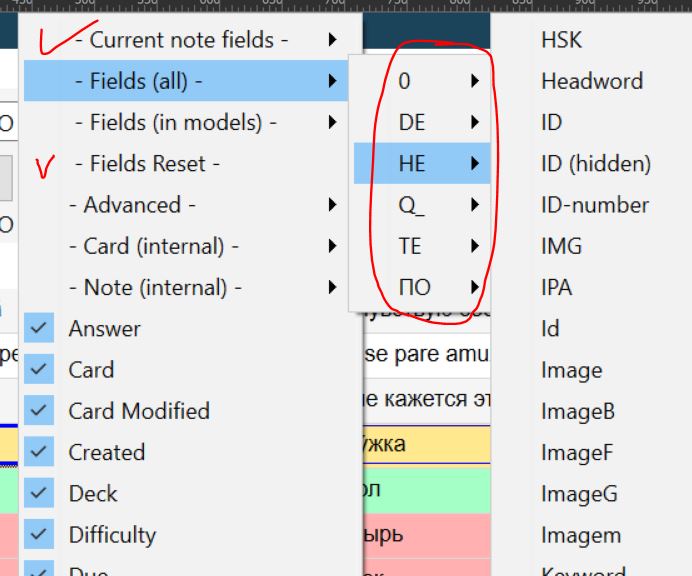
Fixed a bug where the menu wouldn’t fit many items (there were too many fields and they couldn’t be accessed).
The menu now always has three selection methods (excluding the “Use a single list for fields” setting): ”- Current note fields -”, ”- Fields (all) -”, ”- Fields (in models) -” — this is more convenient when there are a lot of fields and note types.
The menu is now much more convenient, as you can select multiple items at once (author: “denny0810”, still unfulfilled request “persitent menu for multi-selection & add fields reset function #187”). Select as usual with the left mouse button and complete the selection with the right mouse button. There’s also an option to select the ”- Fields Reset -” menu item, which will remove the main fields (not extended or system fields). This allows you to quickly reconfigure the display of the required columns.
Added the option to display the “Tags (L1)…(L5)” columns. Tags in Anki aren’t perfect, and it’s unclear when they’ll implement them and put them in a separate table. So the AI kept insisting that this wasn’t possible, but everything seems to be working fine and isn’t lagging (Anki itself is lagging. Even setting “marked” takes 5-10 minutes on 150,000 notes, but a simple computer like this is ideal for testing, so you definitely won’t have any issues). L1 is the level of a regular tag, without the ”::” (usually a space). But sometimes you only need to see a specific tag nesting level, and Anki sorts all tags alphabetically, and this often gets in the way.
Added the ability to display the “nid” and “cid” columns, as this is mentioned in the help file and is useful for more than just developers.
Added the ability to display the “Card State” column. They seem to say that there is a “Card Type”, but it would be good for users to see the same behavior as when choosing in the “Sidebar”, and there it is not unambiguously from one, and sometimes an entry immediately refers to several “Card States”.
The “Overdue interval” and “Previous interval” columns for periods from 31 to 90 days will no longer display as months, but only as days. I think it’s better to see 32 days than 1.1 months (I’ve seen a similar request from a user since 2020).
The flag column will now also display the number “1 - Red” (for red), as the completion status of certain study stages was often color-coded, and sorting there was never done by color.
Column names are now left-aligned, as is done elsewhere in other systems, since long names make it difficult to see the middle, and wide columns shift the name to the center, so you see the data but don’t yet see the column name.
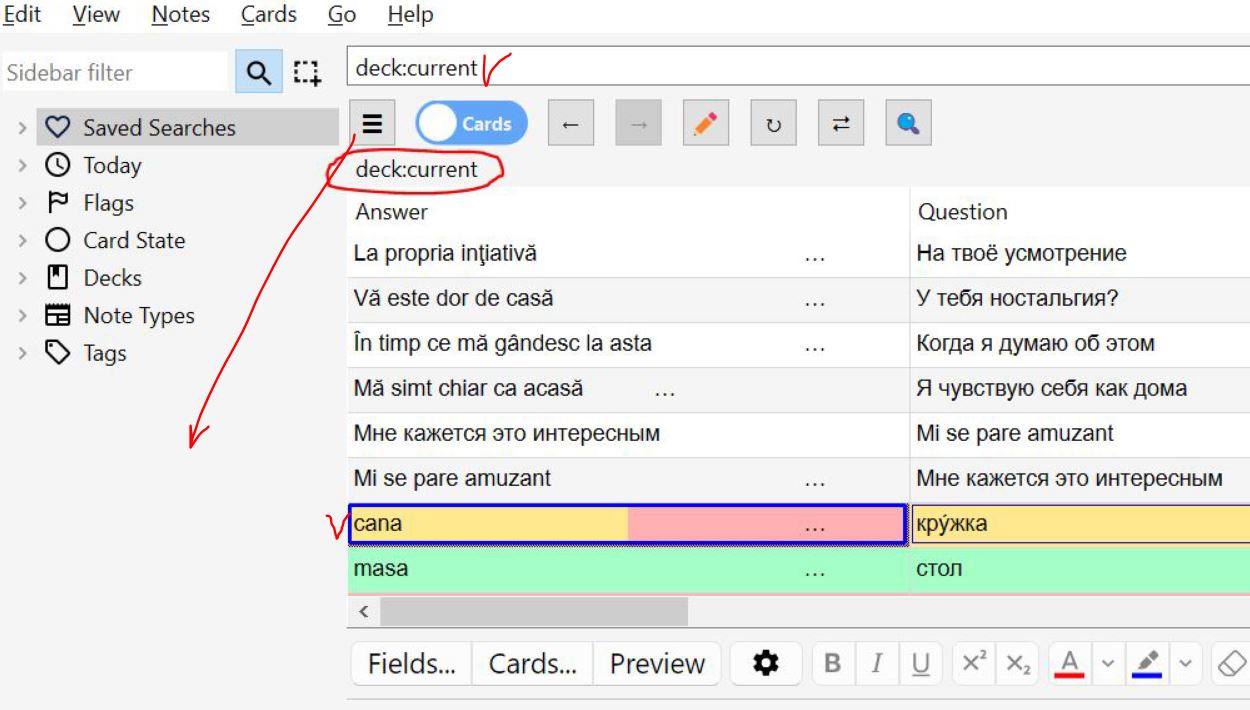
The most convenient feature that was sorely missing is that the column you’re in is remembered, rather than having every sorting change reset you to the beginning. It’s remembered even when switching between a card and a note.
The current row is now highlighted with frames, and the current cell with a bold frame. This is done so that you can see the row color, and the ability to display multiple colors in a single cell has been added, as this was also missing, and it’s important for signaling different statuses.
If it’s the current deck, the search bar was previously blank, and you might think it was ‘deck:*’. So now I type it there immediately, and even if it’s deleted, the query string used to obtain the data in the table is always displayed above the table, which is very convenient.
For the sidebar, you can now change the search bar by clicking on an item while holding Ctrl (OR operator) or Shift (AND operator). Some changes have been made to the algorithms there as well: if you accidentally added something with Shift, you can press Ctrl, and it will replace what you typed instead of adding it; But you can also delete the last item entered by pressing Ctrl+Win or Shift+Win; previously, Ctrl+Shift+Alt didn’t affect negation, but now it will, since logically, it should be possible to change it.
If you’ve added columns with note fields, and there can be dozens of such fields in complex decks, it’s difficult to immediately find the edit field. So, to simplify focusing, you can click on such a cell in the table, and the focus will move to the edit field (you can press F2).
The sidebar can now be hidden using the button on the quick launch toolbar or by pressing Ctrl+Alt+R (and the T next to it, pressing Ctrl+Alt+T, switches the view from the map to the note).
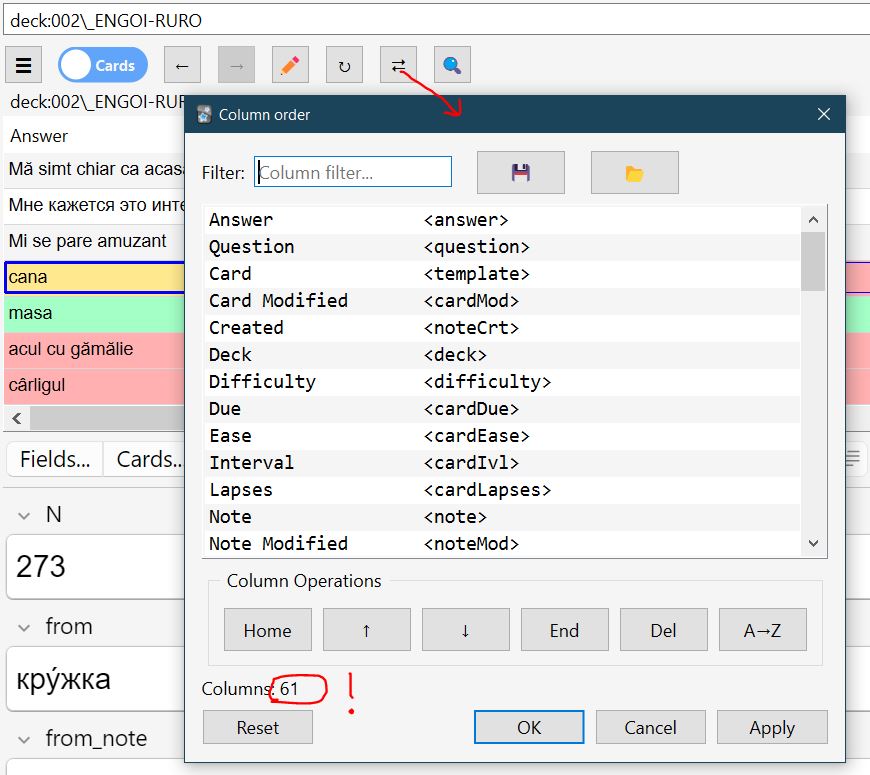
By pressing F8 (or the button on the toolbar), you can open a window in which you can change the order of columns, as moving them around was terribly inconvenient with a large number of them. You can also delete some columns, re-sort, save or load the column order from a file.
When you clicked on the sidebar and changed your query in the search bar, it wasn’t saved until you pressed “Enter.” This remains the case, so the drop-down list will store exactly what you want. But query changes needed to be remembered somewhere, so we introduced the change history (arrows). The history remembers the query and the current card, but the active column, sorting, and column set remain the same so you can analyze them (view with the same sorting and column set). Saving to history happens automatically if you clicked on the sidebar and if you press F9 (there you can save the positions of different cards in a single table). However, sometimes you need to go back in history, see what card was there, study it, and then move to a new card in the same table (perhaps it’s the same deck) and remember this position so you can return to it later. To do this, press F5 (refresh) — this will overwrite the active card’s history. Of course, you can press F9 and save a new history, but sometimes it’s easier to work with three histories with different decks and change their active card rather than create new histories. When you close the ankhs and then open them another time, you’ll immediately be presented with the current deck view, but you can return to the previous history and retrieve all your decks you’re working with, and the current entry’s position will be the one you updated by pressing F5. This is more convenient than simply saving a search query, which is currently available in the sidebar.
Added the ability to translate the add-on into a language other than English. This time, I decided not to implement translation in the “config.json” settings file itself; I was simply tired of Google messing up the formatting for translation, and other AIs aren’t perfect. I also didn’t implement a complex Fluent-like translation system like Anki, since I needed a file that users could upload to Google and still have something survive. :) And the flt file itself isn’t easy to read when a line like card-templates-enter-new-card-position-1 = Enter new card position (1…{ $val }): is incomplete. So I came up with my own solution (a bicycle), which is flexible and separates the variable (block) name from the text itself. This means the translator focuses only on its own lines, which never begin with === or !!! It looks like a regular text file with line translations, easy to understand for any human, much less an AI. Example:
` !!! === $ $ ; setting, block separator, variable start and end, comment start marker
=== q_Card_State
Card State
=== q_nid
nid (Note ID)
=== q_The_field_not_belong_note_type ; in the translation, be sure to check for the presence of two parameters: %s
The field ‘%s’ does not belong to the note type ‘%s’. `
In the add-on settings, find the description of how to find the “en.lng” file. Create a copy of this file for your language in the same directory and translate this file into your language. (You can send me this file, and I’ll add it and update the addon within a week.) You can see the source code here: https://github.com/AndreyKaiu/anki_addon_localization
Added since version 3.9.2b, date: 2026-01-25
The ”$:text” search type is now supported. This will find all words, even if each character is followed by an diacritic (a mark that changes the sound) or if there are tags between letters (bold, etc.) – it will find everything.
The search is not case-sensitive.
To perform this search within a regular expression (“re:”), you must write it as a call to the $(text) function.
How it works: instead of $:abc, the search will be “re:a[\u0300-\u036F](<[^>]>)“b[\u0300-\u036F](<[^>]*>)*c”
Added since version 3.9.5b, date: 2026-02-27
Fixed font display in the column list window in dark mode.
A button for displaying card information, a dedicated hotkey (Shift+F1), and an option to always display the window on top of its original window have been added. The add-on settings now include the “Card Info Dialog Always On Top” setting, which is set to “true” by default. You can set it to “false” if significant errors are detected in your program. For now, I find it much more conv
Screenshots
Liên kết hỗ trợ
- Contact Author
- https://github.com/AnKing-VIP/advanced-browser/pul
- https://github.com/AndreyKaiu/anki_addon_localizat
- issue tracker (preferred),
- support forums
Reviews (2)
👍 2026-02-26
Good upgrade for the Advanced Browser. However, the dark theme does not work well. The column order list appears with black text on the dark background, making hard to read the list of columns. Maybe that problem appears only on my Anki but it could be a bug Comment from author Thanks for the feedback. I’ve tweaked it as much as I could and added one feature. Unfortunately, my dark theme isn’t working. That video card is burned out, and this one must be old, and Anki doesn’t display properly in
👍 2026-02-02
I like the appearance. Comment from author Thanks for the feedback. It helps others find alternative versions of add-ons.
