Source Code: https://github.com/theramjad/audio-file-speed-control Changelog: https://github.com/theramjad/audio-file-speed-control/releases
For support, email the developer at r@rayamjad.com.
About
Audio File Speed Control is an Anki add-on that lets you permanently speed up the audio files embedded in your cards — with pitch preservation — so they play back faster every time, not just during review.
It works by re-encoding your audio files using FFmpeg at whatever speed you choose, then updating your card references to point to the new files. Your originals are always kept.
It supports the following formats:
MP3 WAV OGG M4A MP4 / WebM Features
⚡ Permanent Speed-Up
Speeds up audio at the file level, not just playback — works everywhere Anki plays sound Pitch is preserved using FFmpeg’s atempo filter, so audio doesn’t sound chipmunk-y
🔍 Preview Before You Commit
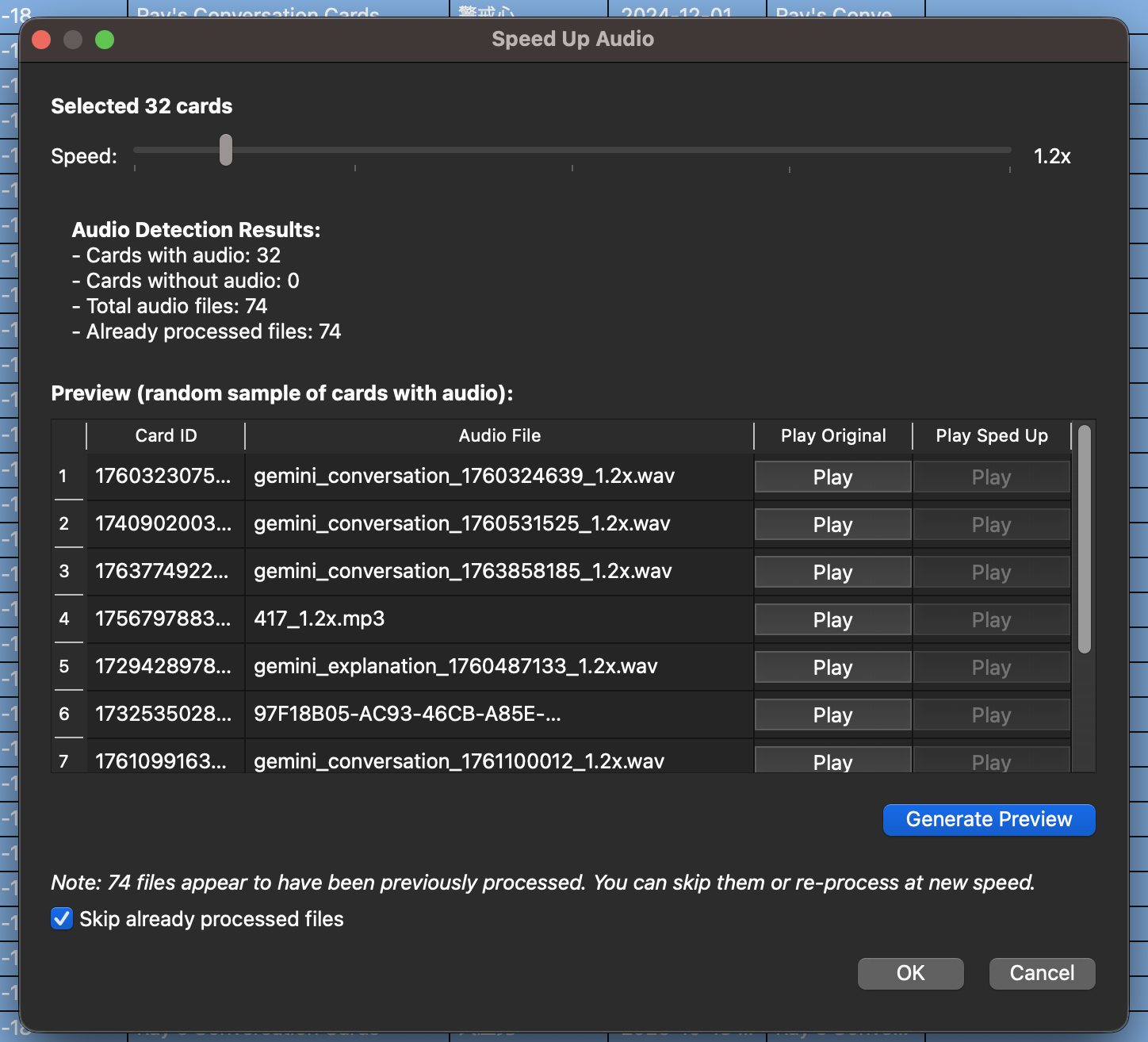
Preview sped-up audio on a sample of your cards before processing anything Compare original vs. sped-up side by side in the dialog
🗂️ Batch Processing
Select any number of cards in the browser and process them all at once Skips already-processed files by default so you don’t double-process Progress bar with cancellation support
↩️ Undo Support
One-click undo that reverts card references back to the originals Created files can be cleaned up later with Anki’s built-in Check Media tool Images
Requirements Anki 23.10 or later FFmpeg installed and available in your PATH
On macOS you can install it with: brew install ffmpeg
How to Use Open the Card Browser in Anki Select the cards whose audio you want to speed up Go to Edit > “Speed Up Audio…” Adjust the speed slider Optionally click Generate Preview to hear a sample before committing Click OK to process all selected cards Common Issues
“FFmpeg not found” error
Install FFmpeg. On macOS: brew install ffmpeg. On Windows, download from ffmpeg.org and add it to your PATH.
Some files failed to process
Check that the audio files actually exist in your Anki media folder. If cards were synced without media, the files may be missing.
Audio sounds distorted at high speeds
The atempo filter works best between 1.0x and 2.0x. Consider staying under 2.5x for best quality.
Nothing happens when I select cards
Make sure the selected cards actually have [sound:…] fields. Cards with only text won’t trigger the dialog. About Me
Hey, I’m Ray. I make videos on YouTube.
Screenshots
Liên kết hỗ trợ
- https://github.com/theramjad/audio-file-speed-cont
- https://github.com/theramjad/audio-file-speed-cont
Reviews (1)
👍 2026-02-18
I haven’t looked at it. But I’ve looked at your projects, and thank you so much for all of this and much more! I think this feature would be useful for some. However, if I were an Anki site admin and were tracking traffic volume, I’d be against creating new files for each speed :)
