FLEXIBLE CLOZE
DISCONTINUATION NOTICE: From Anki 2.1.56 Flexible cloze has been superseeded by Flexible cloze 2, no further updates will be made to this version of Flexible cloze
Flexible cloze is an Anki addon for a configurable cloze note type for keeping related information (and cards) on the same note (Anki forum thread).
Ideas for the functionality of this cloze variant blatantly stolen from trgkanki’s Cloze (Hide all) [https://ankiweb.net/shared/info/1709973686] and RisingOrange’s Enhanced Cloze (for Anki 2.1) [https://ankiweb.net/shared/info/1990296174] - both of which are excellent addons. However all code written from scratch (ok, I peeked at some other code).
ALL CREDIT FOR INNOVATION GOES TO TRGANKI AND RISINGORANGE
General
Active cloze: Cloze(s) with the current ordinal, i.e. the cloze(s) that should be answered. To change styling of these change or override “fcz-active” class in “Styling” of the card template. Inactive cloze: Cloze(s) that are not the current ordinal, i.e. the cloze(s) that should not be answered.To change styling of these change or override “fcz-inactive” class in “Styling” of the card template. Exposed cloze: Cloze(s) that when inactive (see above) will always be in “shown” state on the front side. Mark a cloze as exposed in the editor by making the first character an exclamation mark (e.g. {{c1::!This will be displayed on the front when the cloze ordinal is not 1}}).
Configurable expose character(s), default is ! Configurable position of the expose position to allow use with {{type:cloze:Text}}:
pre: !{{c1::content}} begin (default): {{c1::!content}} end: {{c1::content !}} post: {{c1::content}}! Configurable to reverse the expose status, i.e. all inactive clozes are exposed and those marked as “expose” will be hidden. Example: —expose: # pre reverse; To change styling of these change or override “fcz-expose” class in “Styling” of the card template. Scrolling: Configurable scrolling behaviour on card show/flip, when clicking a hidden cloze and when cycling to next/previous with edge taps or keyboard shortcuts:
none: no scroll min: scrolls as little as possible to get active cloze(s) into view center: centers the active clozes in the vindow. context: scroll to center (above) if this means the line following the preceding cloze will be visible, otherwise scroll to the line following the preceding cloze (i.e. show the cloze context) - this may result in the current cloze being below the screen. chapter-context: scroll to center (above) if this means the line following the preceding cloze will be visible, otherwise scroll to preceding <hr> or <h1>-<h6> or top of card (i.e. show all of the “chapter”) - this may result in the current cloze being below the screen. Scroll on initial show/flip: context, center, min or none. Scroll on iterate (pressing next key etc.): iterate-center, iterate-min or iterate-none. Scroll on click: click-center, click-min or click-none. Example: —scroll: context iterate-min click-min; Iteration - cycling active, inactive or all clozes with keyboard shortcut or edge tap. Iteration behaviour can be configured as follows:
Which clozes should be cycled: active, inactive or all. Hide the cloze “you are leaving” when iterating: hide Loop iteration once you reach the first/last (otherwise you will stop): loop Always start iteration from the top (otherwise iteration will “continue” from the last clicked item): top Example: —iterate: active top loop hide; Non-active cloze and non-cloze field display behaviour can be configured to show per default as follows:
Inactive clozes: inactive-front, inactive-back (setting both these will make FCZ behave similar to core Anki clozes) Addtional fields (including Information field): additional-front, additional-back Information field (regardless of Additional fields): info-front, info-back Example: —show: info-front additional-back Styling of different elements (e.g. “I want the answer to be displayed inline rather than in a block”) can easily be configured in the “Styling” section of the card template. To facilitate end user modifications of the layout, style and function of the template updates will come with a dialog allowing the user to determine which parts to update. A temporary backup (will be overwritten on next update) of the current template will be created in the add-on folder. Changes will mainly be made inside “FCZ BEGIN/END” tags, which in turn is divided into functionality and styling allowing the user to avoid overwriting the styling part on update. Configuration is made in the “Styling” section of the card template under the “.fcz-config” heading:
/* FLEXIBLE CLOZE CONFIGURATION======================================= */ .fcz-config { —cloze-element: div; —inactive-prompt: ; —active-prompt: ; —expose: ! begin; —scroll: center iterate-min click-min; —iterate: active hide loop top; —key-next-cloze: j; —key-previous-cloze: h; —key-toggle-all: k; —show: info-front additional-back info-front; } Clicking an active cloze on the front side will cycle it between hint (if there is one) and show. Clicking an inactive cloze on the front side will cycle it through hide - hint - show. When writing notes that are “sequential” in nature (i.e. when the later clozes in the note requires knowing the earlier clozes) a suggestion is to configure Anki to present new cards in order (once they are no longer new they will not come in order but that is less important):
Using the V3 scheduler set the deck new card insertion order to Sequential. Using an older scheduler use show new siblings in order / no same day spacing(randomization) for new siblings. There is an optional “show all” button (styleable in class .fcz-show-all-btn), note that:
The button is set to display: none in default configuration, you have to set it to display: inline on the Styling page of the cards dialog to get it to show.
/* ANSWER SIDE STYLING ============================================== / / Show all button/bar styling (and if visible or not) */ .fcz-show-all-btn { display: inline; background-color: #465A65; color: white; text-align: center; text-transform: uppercase; font-size: 15px; font-weight: bold; padding: 5px; border-bottom: 1px solid white; } If you are updating from a previous version of the template and choose to not “overwrite all” (overwriting any personal changes you have made) you will have to manually add the actual button on the front as this requires changing the HTML outside the FCZ BEGIN/END tags. Insert <div id=“fcz-show-all” class=“fcz-show-all-btn” style=“cursor: pointer;” onclick=“fcz_toggle_all()“>Show all</div> just after the closing div-tag of the <div id=“fcz-additional” style=“z-index: 2;”> (have a look in the add-on directory in fcz-front.html). https://github.com/TRIAEIOU/Flexible-cloze
Regarding styling
As there have been a few questions regarding the default styling of the template not looking like “regular Anki clozes”. You can have the clozes display however you want by adjusting the CSS on the “Styling” page of the “Cards” dialog. To achieve the “regular Anki cloze styling”: In the “FLEXIBLE CLOZE CONFIGURATION” section set:
—cloze-element: span; —inactive-prompt: […]; —active-prompt: […];
Replace all the content under the “CLOZE STYLING” section with .fcz-active { color: blue; font-weight: bold; }. If by chance I am little off on the font-weight you can fine-tune it by starting at 400 which is normal font-weight and going upward (900 would be “very bold”). Similarly if by chance the blue nuance is off you can insert the correct RGB instead, e.g. #0000FF.
Main difference from the earlier mentioned add-ons
There is effectively no add-on, it’s all JavaScript (and HTML/CSS) and runs 100% “client side” (the only python is the update logic). This has a number of effects:
The only thing the add-on does is insert a new note type (Flexible Cloze) with the relevant JS/HTML/CSS, once you have it (and don’t want any updates) feel free to uninstall the add-on. Similarly you can share decks with anyone without any need for them to install anything since everything is in the note type. There are no special fields etc., the note type uses vanilla Anki clozes and parses them runtime. There are no complaints from Anki on missing clozes and no insertions into the notes of any type of markup or extra fields (so for anyone wanting to go to Anki’s limit of 500 clozes, go ahead). Included is my note styling and configuration (the way it functions and which fields are present are more or less a complete rip-off from RisingOrange). However, you can edit the note type however you want if you know a little HTML and CSS. This allows for keeping related content on the same note facilitating note creation (no need to search through the deck to see if you already added a card with similar content). It can also help when reviewing as you can look at the other related clozes if you need to check something (e.g. “Well if it wasn’t that, what was it?”). This is how I design my notes, hence the layout. I would recommend keeping any note type edits outside the FCZ BEGIN/END marks as content inside will be overwritten if the addon is updated (assuming you still have it installed). However if you want to keep the add-on for updates but want to muck about inside the begin/end tags I would suggest you duplicate the note type and rename your version to whatever (updates are made only on the appropriately named note type). If you, like me tend to do your reviews on a tablet the effect of having everything on the note makes it possible to edit the note on, for instance AnkiDroid, without any issues. Since all is on the note configurations (like how the clozes look etc.) are in the CSS there is no configuration from the add-on pane. Hardly an important difference but I use the flags for marking cards that needs to be corrected in different ways so there is a flag l
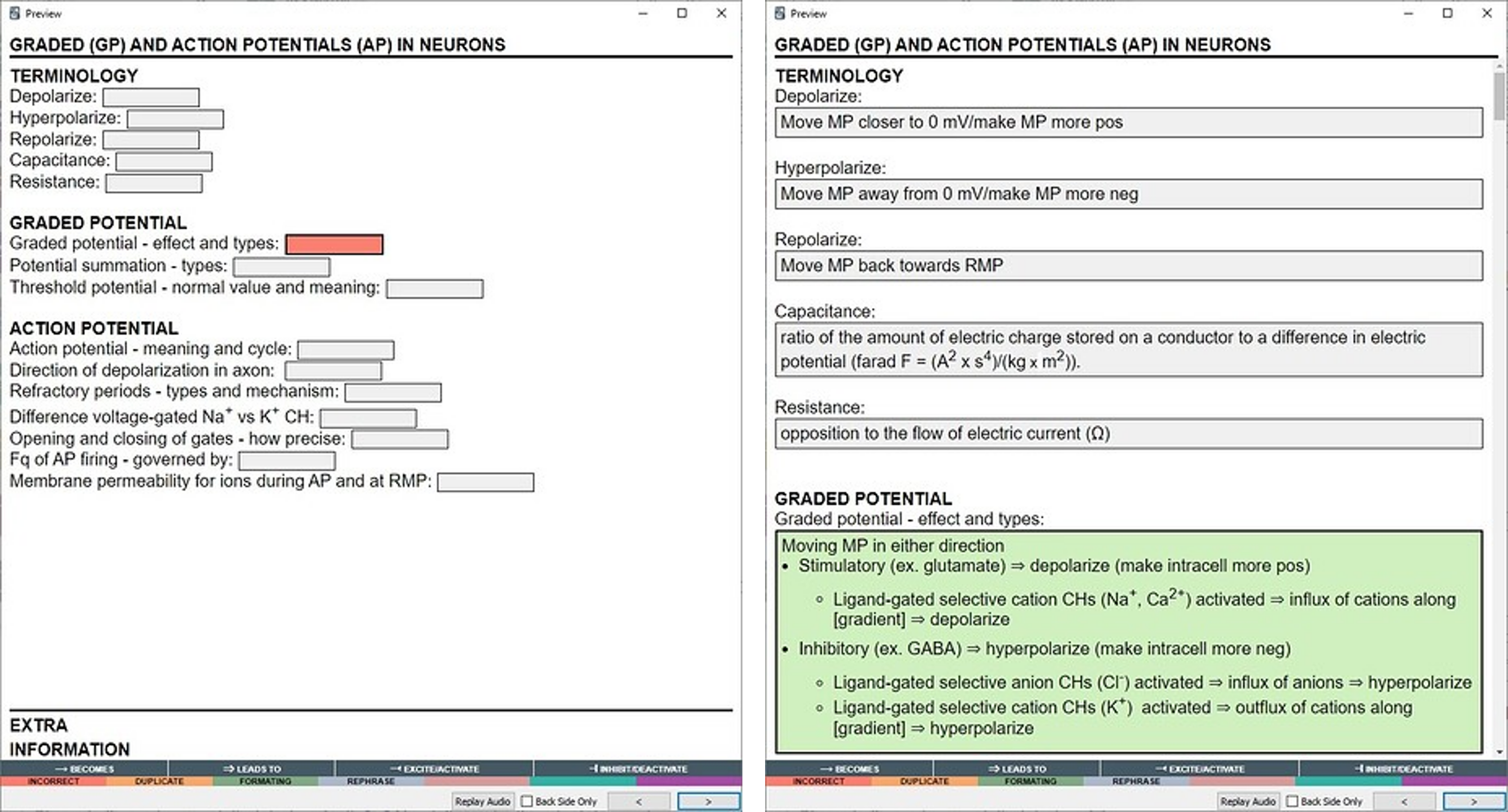
Screenshots
Liên kết hỗ trợ
Reviews (10)
👍 2022-10-16
great!
👍 2022-09-12
Deleted my former complaint. Now you can configure the position of the expose character so that it doesn’t interfere with typing or TTS. Thank you.
👍 2022-06-30
great addon
👍 2022-03-05
Amazing work. This is game-changing for my studies. Would you consider adding support for iOS devices?
👍 2022-01-29
Nice add-on! But text field cannot be displayed on AnkiDroid. Comment from author Thanks! Could you specify the issue you are having? I myself as well as several others I know use Flexible Cloze on AnkiDroid (I do all my reviews on an Android tablet). Please do it in the support thread of the forum as the comment section is not really conducive for ongoing communications.
👍 2021-12-27
Hi, thanks for this wonderful add-on, I love it.
Just 2 problems:
-
When I modify the cloze style and colour in Anki Desktop, then in Ankidroid clozes appear in a different colour…
-
Is it possible to avoid writing text in the “Title Box” when not needed? Comment from author I am not sure I understand the first problem, which styles are you editing and which clozes (Flexible clozes or Anki “regular” clozes)? Please reply in the support thread instead (https://forums.ankiweb.net/t/flex
👍 2021-12-18
Ottimo e funziona anche in Ankidroid
👍 2021-12-12
Wow! no, WOW!!! Just how cool this addon is!
Its author greatly managed with all the custom cloze addons’ heritage and added on top whole lots of own awesome stuff to make things perfect.
I can’t even imagine what was not implemented. Perhaps, same number of dots (or underscores) representing the hidden words with the same number of letters (in theory might be useful with monospace fonts - the rest of the text won’t move even a bit after showing up the clozes plus it also hints the number of s
👍 2021-11-29
EDIT 2.1: I have reformulated the query in the add-on’s forum using the username “elaltavoz” (29/11/2021) with more details.
__
EDIT 2: Thanks a lot for your instructions. Now I’ve changed the style and I guess I’m ok with the results. On the other hand, I would like to know how to adjust the “auto-scroll” function in order to automatically scroll a little below. That is because I always have more than one c1 or c2 in each flashcard, so I wouldn’t have to manually scroll down to see the other
👍 2021-11-09
Good add-on, but can you add a function to always show a particular cloze? For example:
{{c1::Heading}}
{{c2::Info 1}} {{c3::Info 2}} {{c3::Info 3}}
On the other addons this is solved by putting a special character following the cloze syntax, e.g {{c1::! or {{c1::#
The cloze c1 should be always visible when clozes 2, 3 and 4 are prompted.
EDIT: First use case, “{{c1!::” should be visible all the time, except of course when anki is prompting for cloze 1.
Most common use case: headi
