Notion Toggles to Anki Add-on
This add-on aims to streamline Anki card creation by leveraging Notion’s user-friendly interface for note-taking. It eliminates the difficulties of directly creating/editing cards in Anki or the tediousness of copying Notion toggles into Anki.
After experimenting with all available Notion to Anki add-ons and finding them insufficient for our needs, we developed our own solution! Our add-on converts Notion toggles into questions, featuring:
Multiple Page Support: Import content from several pages and organize them into distinct Anki decks. Recursive Toggle Discovery: Automatically locate toggles within nested pages. Reliable Data Import: Utilizes the official Notion API for data import, ensuring a more dependable experience than basic HTML parsing. User-Friendly Interface: Easy configuration through a graphical user interface (GUI). Support for Notion Features: Handles inline tables, LaTeX equations, code blocks, and other rich content types seamlessly.
How to Use the Notion to Anki Add-on
- Install the Add-on Install the Add-on with the code provided at the bottom of this page.
- Notion-Side Configuration
To set up your Notion API token and enable integration:
Create a Notion API Token:
Navigate to your Notion integrations page. Click on “New Integration.” Assign any name to your integration (e.g., “Anki”). Select the workspace from which you want to import toggles. Choose “Internal” for the Type. Copy the Internal Integration Secret (this is your Notion API token).
Save the Notion API Token: Store the token securely for future use.
Add the Integration to Notion Pages:
Go to each Notion page you want to import. Click on the three dots (•••) in the top-right corner. Select “Add connections” from the dropdown menu. In the dialog, search for your newly created integration and grant access to that page. 3. Add-On Configuration
To configure the Notion to Anki add-on in Anki:
Open Anki and go to the “Notion to Anki” submenu in the menu bar (under tools).
Click on “Configuration.”
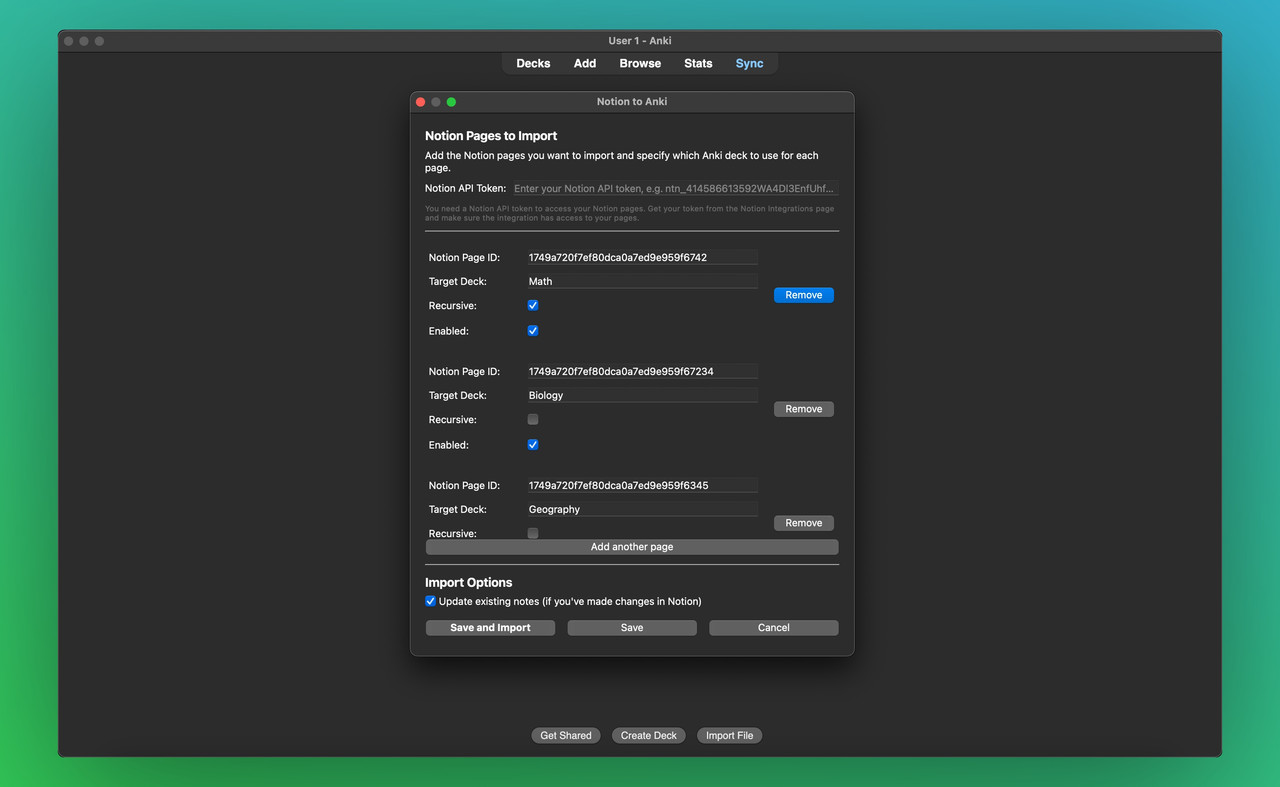
Input your Notion API Token: Paste your copied API token into the designated field.
Add Notion Pages:
For each page you want to import, locate its page ID by opening the page in Notion and copying the last part of the URL (after the last slash).
Example: For the URL https://www.notion.so/Page-Name-1af9a720f7ef8028acefebf85901a661, the desired page ID is 1af9a720f7ef8028acefebf85901a661.
Paste the page ID into the “Page ID” box and specify the name of the Anki deck you want to import into.
You can add multiple pages as needed.
Enable Recursion: To find toggles within nested pages, check the “Recursive” box for that page.
Sync Control: Enable or disable syncing for specific pages anytime by checking the corresponding checkbox. This will not affect cards already imported from those pages.
Click “Save” to finalize your configuration.
- Import from Notion
To import your toggles:
Head to the “Notion to Anki” submenu in the menu bar (under tools) and click “Import.” The import will run in the background, allowing you to continue using Anki as usual. Once completed, you’ll receive an in-app notification confirming the successful import.
Screenshots
Reviews (11)
👍 2026-02-27
Now with this, i can study better!
👍 2026-02-08
Very useful tool, thanks!
👍 2026-01-22
It works perfectly! Simple, clear, and concise. I am very grateful for this
👍 2025-10-03
Is there a way to also tag each toggle to export into Anki?
👍 2025-09-16
I cannot even express how much I love this addon!! It works perfectly :)) Comment from author Glad you are enjoying it! This made our day! — Notion Toggles to Anki Developers :)
👍 2025-09-04
Works perfectly! Thanks so much, guys!!
👍 2025-08-30
Works good
👍 2025-07-05
Thank you so much! This has been a life saver :) Comment from author This means a lot to us, thank you for using it! — Notion Toggles to Anki Developers :)
👍 2025-04-13
Awesome!!! Easy to use!
👍 2025-03-17
works great!
👍 2025-03-17
works perfectly, thanks!
