📘STUDY NOTES📘
A powerful note-taking add-on for Anki that allows you to keep multiple text-based notebooks organized directly within your Anki profile. This add-on includes rich text editing features (bold, italic, underline, coloring, lists, images) and a convenient multi-tab interface for different classes or subjects. Best of all, it saves automatically to your Anki user profile directory, so you can keep your study notes right where you need them—alongside your Anki decks.
Table of Contents Introduction Key Features How It Works Multiple Files / Subjects Autosaving & Manual Saving Installation & Usage in Anki Advanced Configuration Troubleshooting & Support
Introduction
STUDY NOTES is an Anki add-on designed to help you take notes directly within the Anki ecosystem. Whether you’re studying for multiple classes or simply prefer to keep all your study materials in one place, STUDY NOTES allows you to organize, search, and manage your text notes with minimal fuss—no need for external word processors.
The add-on integrates seamlessly into Anki by creating a dedicated folder in the Anki user profile and providing a menu item in Anki to launch the notebook interface. It’s perfect for students, language learners, or anyone who wants to unify flashcard practice with typed notes or class outlines.
Key Features
Multiple Notebook Tabs
Manage multiple notes at once, each in its own tab. Name tabs for subjects like Biology, Anatomy, Mathematics, etc.
Rich Text Editor
Bold, Italic, Underline, and text color. Adjustable font families, font size. Create bullet or numbered lists. Insert images directly into your notes.
Autosave & Manual Save
Automatic saving every 60 seconds to ensure you never lose progress. Manual saving via the File menu for extra backup control.
Seamless Organization
Files are stored in your Anki profile folder, simplifying backup & sync. Rename and Delete notes easily.
Search Function
Real-time text search in your open note, highlighting all matches.
Easy Integration
Works with your existing Anki setup and can be installed like any standard add-on.
Screenshots
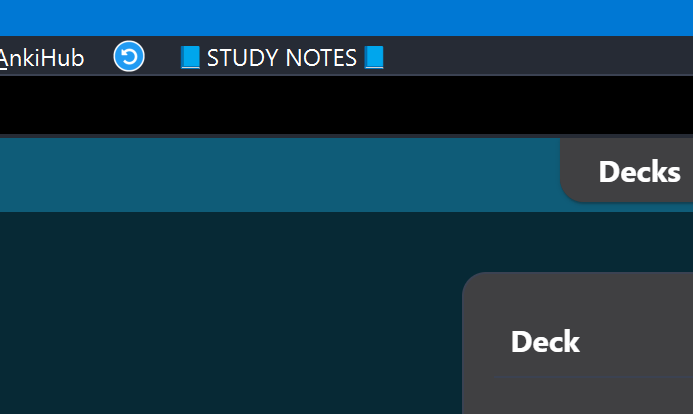
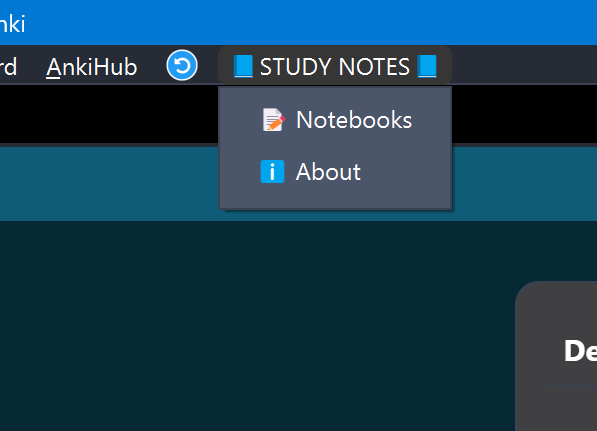
Main Menu Layout
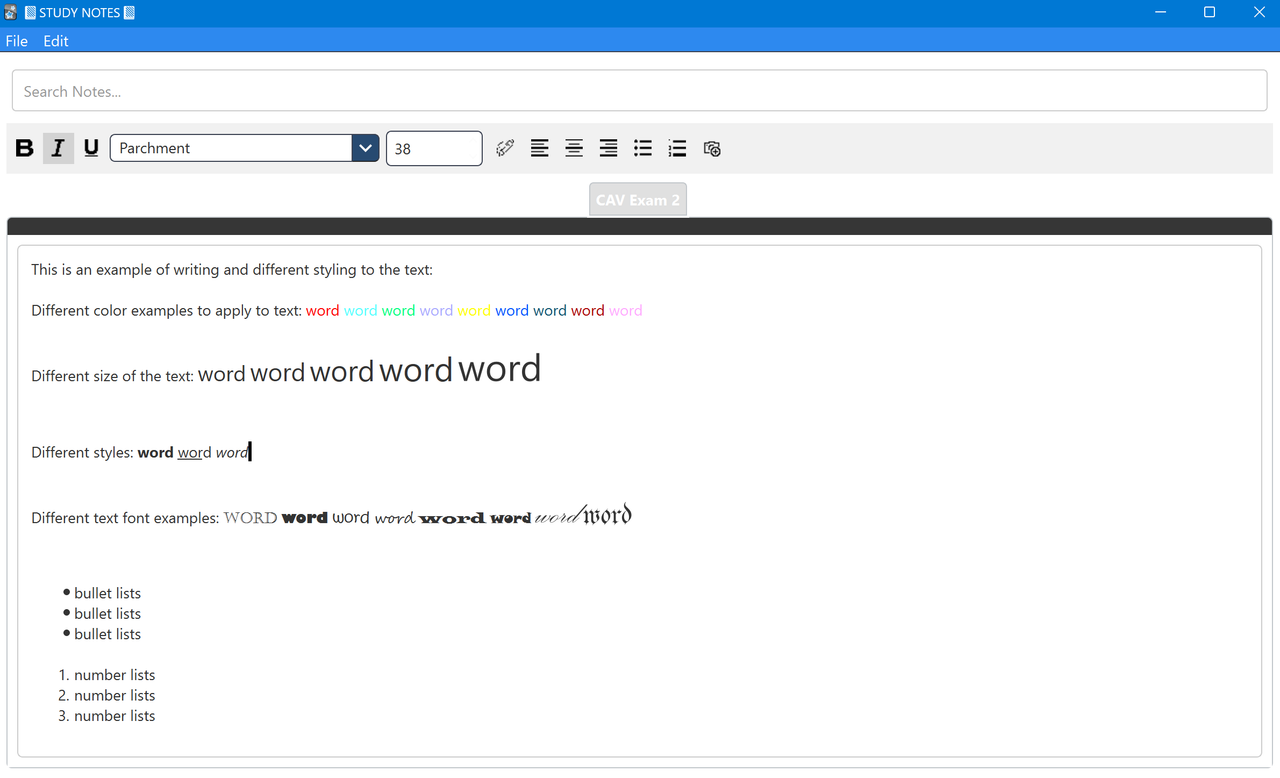
Main Notebook Window & Text Formatting Toolbar
Multiple Tabs (Different Subjects)
How It Works
Notebook Window When you launch the STUDY NOTES add-on, a new window appears with:
Menu Bar (File, Edit, etc.) Search Bar for text highlighting Toolbar for text formatting (bold, italic, font size, etc.) Tab Area where each note is displayed in a separate tab
File Storage Each note is saved as a .txt file in a dedicated folder (STUDY NOTES - NOTEBOOKS) under your Anki profile. Renaming a note also renames the corresponding file.
Editing & Formatting Use the toolbar for common formatting actions:
Bold (Ctrl+B) Italic (Ctrl+I) Underline (Ctrl+U) Change font family, size, alignment Insert images and bullet/numbered lists
Autosave Mechanism Every 60 seconds, the add-on automatically writes changes in your active note to disk, keeping your work safe.
Multiple Files / Subjects
STUDY NOTES supports multiple text files for different classes or topics. Each note appears as a separate tab. Create a new note via File → New Note, name it, and start typing.
Renaming a Note: Go to File → Rename Note and provide a new name for the active tab. The corresponding .txt file is also renamed. Deleting a Note: Go to File → Delete Note to remove the file and close its tab.
Open as many notes as you need; easily switch between tabs to keep your class topics organized.
Autosaving & Manual Saving
Autosave The add-on automatically saves the current note’s contents every 60 seconds to a .txt file in your Anki profile folder.
Manual Save For manual control, choose File → Save Note. Select a file path or overwrite the existing file.
Tip: Because STUDY NOTES stores these files in your Anki profile, they can be backed up or synced when you use Anki’s built-in profile sync (depending on your sync preferences).
Installation & Usage in Anki
Installation
Copy the add-on folder to your Anki addons21 (or corresponding version) folder. Restart Anki.
Launching the Add-on
Once Anki is open, check the main menu for 📘STUDY NOTES📘. Click 📝 Notebooks to launch the notebook window.
Workflow
Create or open a note. Type, format, and search text as needed. Autosave keeps everything safe, or you can manually save.
Advanced Configuration Folder Management By default, the add-on creates STUDY NOTES - NOTEBOOKS inside your Anki profile. Rename or move this folder by editing the global ADDON_NAME_NOTEBOOKS variable in the source code.
Troubleshooting & Support
Add-on Not Appearing in Anki
Verify the folder is in your addonsXX directory. Restart Anki.
Notes Not Saving/Loading
Ensure you have write permissions. Confirm the STUDY NOTES - NOTEBOOKS folder exists inside your Anki profile.
Autosave Conflicts
Avoid editing the same note file in an external program while it’s open in STUDY NOTES.
Further Assistance
Check Anki’s add-on documentation or community forums for further help. Report issues or request features via the repository or a support channel if provided.
Enjoy seamless note-taking with 📘STUDY NOTES📘 For any questions or additional help, consult the developer community or the add-on’s source code. Happy studying!
Screenshots

Liên kết hỗ trợ
Reviews (4)
👍 2026-01-27
Anki 25.09.2 (3890e12c) (ao) Python 3.13.5 Qt 6.9.1 PyQt 6.9.1 Platform: Windows-11-10.0.26200-SP0
Traceback (most recent call last): File “C:\Users\HaslanP\AppData\Roaming\Anki2\addons21\45979171_init_.py”, line 602, in open_window cls._instance = NotebookApp(parent=mw)
File "C:\Users\HaslanP\AppData\Roaming\Anki2\addons21\45979171\__init__.py", line 35, in __init__
self.setWindowFlags(self.windowFlags() | Qt.Window | Qt.WindowTitleHint

### 👍 2025-07-07

Getting an error. Will this add on be updated for version 25.02?

### 👍 2025-02-12

您好,最新版本的anki这个插件有错误了
Anki 25.02 (038d85b1)  (ao)
Python 3.9.18 Qt 6.6.2 PyQt 6.6.1
Platform: macOS-14.7.3-x86_64-i386-64bit

Traceback (most recent call last):
File "/Users/lei/Library/Application Support/Anki2/addons21/45979171/__init__.py", line 602, in open_window
cls._instance = NotebookApp(parent=mw)
File "/Users/lei/Library/Application Support/Anki2/addons21/45979171/__init__.py", line 35, in __init__
self.setWindowFlags(self.windowFlags() | Qt.Window | Qt.WindowTitleHint | Qt.

### 👍 2024-12-07

Great Add-on! Would love the ability to open "Notebooks" via configurable keyboard shortcut.
Comment from author
I will update it in the coming version with configurable keyboard shortcuts.
