AnkiExplain - AI-Powered Flashcard Explanations
Get instant, intelligent explanations for any flashcard using Google’s Gemini AI.
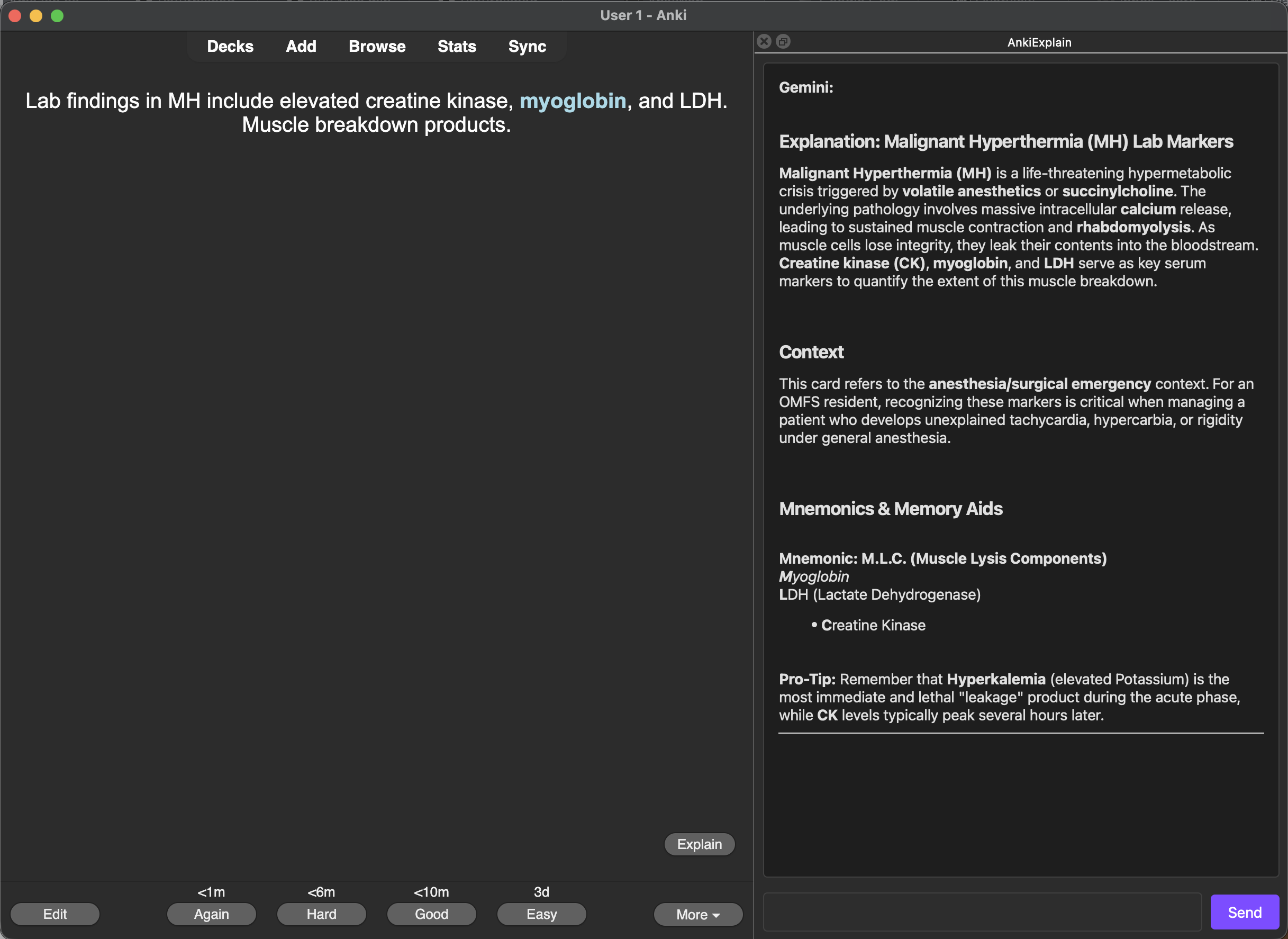
AnkiExplain adds an “Explain” button to your Anki review sessions. When you’re struggling to understand a concept, just click the button to get a clear explanation, memory aids, and related concepts - all powered by Google’s Gemini AI.
Features One-Click Explanations - “Explain” button appears when you reveal a card’s answer Intelligent Responses - Get concise explanations with context, mnemonics, and related concepts Follow-Up Questions - Chat interface lets you ask follow-up questions for deeper understanding Multiple Gemini Models - Choose from Gemini 3 Flash, 2.5 Flash, 2.5 Pro, and more Customizable Prompts - Modify the AI prompt to suit your learning style Dark/Light Mode - Automatically matches your Anki theme Markdown Rendering - Responses display with proper formatting (bold, lists, code blocks) Keyboard Shortcut - Open the sidebar with Cmd+Shift+E (Mac) or Ctrl+Shift+E (Windows/Linux) Setup Getting Your API Key Visit Google AI Studio Sign in with your Google account Click “Create API Key” Copy the generated key Configuring the Add-on In Anki, go to Tools → AnkiExplain Settings… Paste your API key in the “API Key” field Select your preferred Gemini model (Optional) Customize the prompt Click Save Usage Basic Usage Start a review session When a card appears, click “Show Answer” Click the Explain button (or press Cmd+Shift+E / Ctrl+Shift+E) A sidebar will open with an AI-generated explanation. Use the ✕ button to hide it. Asking Follow-Up Questions
After receiving an explanation, you can ask follow-up questions in the input field:
“Can you give me another example?” “How does this relate to [other concept]?” “Explain this in simpler terms” Customizing the Prompt
Go to Tools → AnkiExplain Settings… to customize how the AI responds:
Adjust the prompt to focus on specific aspects (mnemonics, examples, context) Use {question} and {answer} as placeholders for card content Click “Reset to Default” to restore the original prompt Tips For medical/science cards: The AI will automatically detect context and provide relevant explanations For language learning: Ask follow-up questions about grammar, usage, or pronunciation For memorization: The AI will suggest mnemonics - established ones when available, or create logical ones Updates (v1.5 - February 8, 2026)
A major update with significant improvements to reliability, usability, and the overall experience.
Streaming Responses
Explanations now appear word-by-word as they are generated instead of waiting for the full response. This makes the add-on feel much faster — you can start reading within a second instead of waiting several seconds for a complete answer.
Dockable Sidebar
The explanation panel is now a proper docked sidebar instead of a popup dialog. It sits alongside your cards so you can keep reviewing without interruption. You can dock it to the left or right, pop it out as a floating window, or close it at any time. All window controls are in a clean, unified toolbar.
Sidebar Position Control
Choose where the sidebar opens by default (left, right, or floating) in Settings. An arrow button in the toolbar lets you quickly move it to the other side without opening settings.
Cancel and Copy
A cancel button lets you stop a response mid-generation if you’ve already gotten what you need. A copy button lets you grab the last response with one click.
Better Error Handling
Errors now appear inline in the chat with clear, actionable messages instead of disruptive popup dialogs. Rate limits, invalid API keys, and network issues each get a specific helpful message. The add-on also automatically retries when the model is temporarily overloaded.
Adjustable Font Size
Use the +/- buttons in the toolbar to resize the text. Your preference is saved between sessions, and the input field scales to match.
Test Your API Key
The settings dialog now includes a “Test API Key” button that verifies your key works before you save. No more guessing if you copied it correctly.
Custom Model Support
In addition to the preset Gemini models, you can now type any model name directly into the selector. This future-proofs the add-on as new models are released. Only applies to Gemini models.
Accessibility
Screen reader support, keyboard navigation, proper color contrast, and tooltips on all controls. The add-on now works better for everyone.
Reliability
Fixed several bugs that could cause stale responses to appear on the wrong card, chat history to break after network errors, or the sidebar to crash after switching Anki profiles. The add-on now handles edge cases gracefully and recovers cleanly from errors.
Screenshots
Reviews (4)
👍 2026-02-18
this app is great!!
👍 2026-01-30
Very helpful
👍 2026-01-29
Fantástico,
👍 2026-01-29
Works really quick, thanks for this!
