Quickly make study guides for your 3rd year clerkship using the AnKing deck!
Please feel free to email me with feedback / any errors - I’d appreciate if you reach out here before leaving a negative review if there’s ever an issue. Keep in mind this is very much a rudimentary, hacked-together, labor of love! Would love to hear suggestions on features that would make this a more useful tool for you. Currently working on adding more customization to the schedule creation and mild gamification changes. Reach me at: ankihuskyhelper@gmail.com
12/17/22 — Significant optimizations to load times — better compatibility with newer AnKing versions
10/19/22 — Fixed a bug in the previous upload, should now work on all AnKing versions and regardless of your tag hierarchy AS LONG AS YOUR OME TAGS INCLUDE “#AK_Step2_v10::#OME”, with v10 being replaced by which version of AnKing you are using.
10/16/22 — Added support for newer AnKing versions, just make you adjust the counter at the bottom of the scheduling wizard! — Various bug fixes
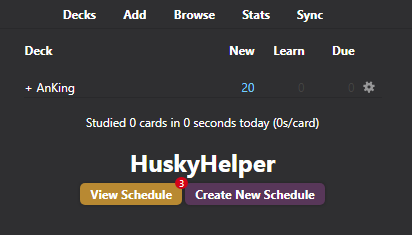
7/27/22 — Too many things to count! — Mainly behind-the-scenes technical fixes + visual updates — Added buttons to the deck browser that show how many videos you have due for your current schedule.
4/7/22 — Quick bug fixes re: unlocking cards from the client — Next update will have an overview frame within the schedule viewer showing you your progress through the rotation and some brief stats.
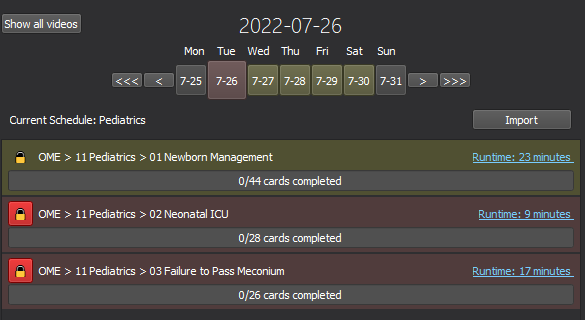
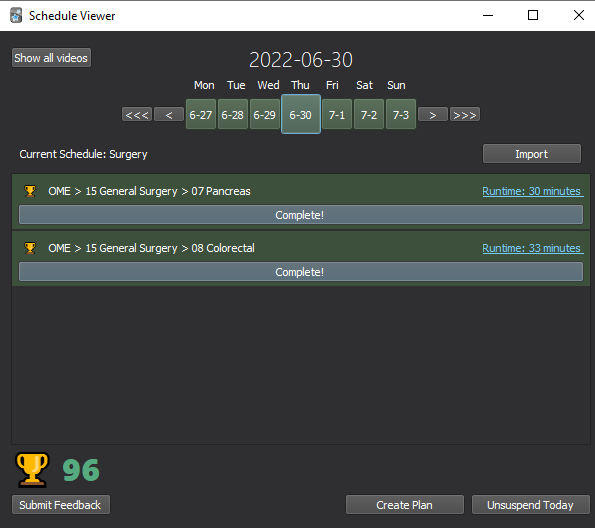
4/4/22 — Added hyperlinks + runtime to each video — Added support for light-mode (still looks way better in Night mode though) — You can click the progress bar for each video to open the browser to the relevant cards
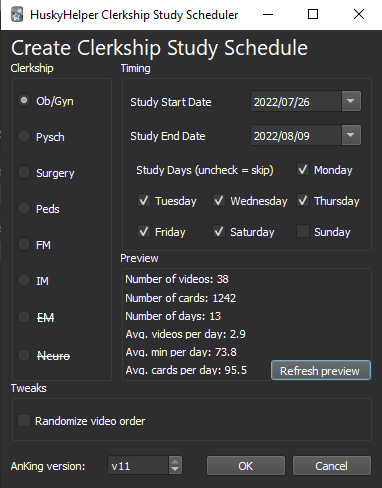
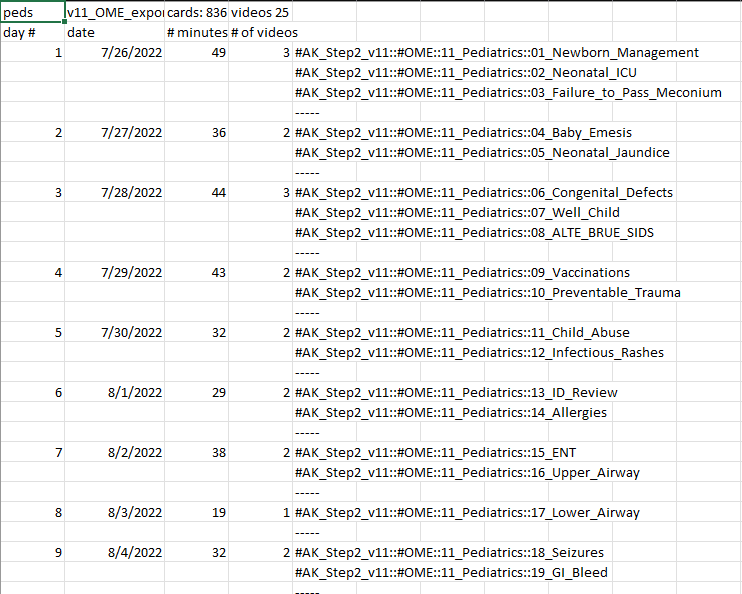
Open the addon from the HuskyHelper button on your toolbar. Launch the schedule viewer and follow the prompts to create a study guide, which you can then import from the launcher.
Unsuspend cards by either clicking the red lock on individual videos or via “unsuspend today” at the bottom of the window.
You can scroll previous and future days with the “yesterday” and “tomorrow” buttons. Clicking the display date snaps back to tomorrow.
The scheduler will ignore cards with flag 1 (red flag) when showing your progress - you can use this to omit certain cards from your schedule.
Known errors - Oops!: If you close the file browser while choosing a schedule to import, you’ll get an error. Name of the current schedule doesn’t always display properly, but this is mostly an edge case. If you import a schedule, you sometimes have to reopen the schedule viewer to display fully.
Future goals: More stats + gamification Faster / fewer load times. Usability without AnKing deck (at least for exporting schedules - this should be an easy fix, can add sooner rather than later if there’s interest)
Hope you find this helpful! lmk about new bugs or any new features you’d like to see
Screenshots
Reviews (2)
👍 2023-11-28
update: help :( anking v12, qt5 Version 2.1.65 (aa9a734f) Python 3.9.15 Qt 5.15.2 PyQt 5.15.5
Error An error occurred. Please start Anki while holding down the shift key, which will temporarily disable the add-ons you have installed. If the issue only occurs when add-ons are enabled, please use the Tools > Add-ons menu item to disable some add-ons and restart Anki, repeating until you discover the add-on that is causing the problem. When you’ve discovered the add-on that is causing the proble
👍 2023-01-06
Crashes my anki app on the Mac
edit: I am using Qt6 not Qt5 as you said so that might be the issue.
edit: after switching to Qt5 the addon works perfectly. Thanks a lot :)
edit: After trying to import the schedule it crashes my anki and the addon no longer works on start unless i uninstall and reinstall it and even then i cant see my schedule. it’s a great addon otherwise and props to the author for making this
Here’s the error message
Error
An error occurred. Please start Anki while
