NOTE: This addon is for power users and is quite complex.
This is an addon for performing complex batch field editing like what Advanced Copy Fields, Batch Editing and the default Anki’s regex search and replace can do, but more and all at once. Edits can be automated to be run when syncing or after reviewing cards.
You can ask for help making complex setups in the Anki forums support thread
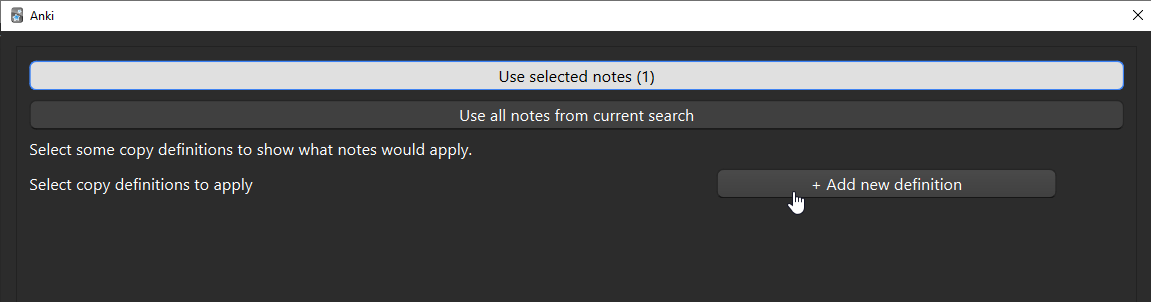
Usage Open main dialog
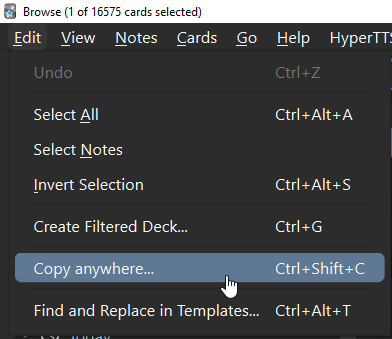
In the card browser main menu Edit —> Copy Anywhere or hotkey Alt+Shift+C
Making copy definitions
Creating, editing and removing definitions is done through the dialog.
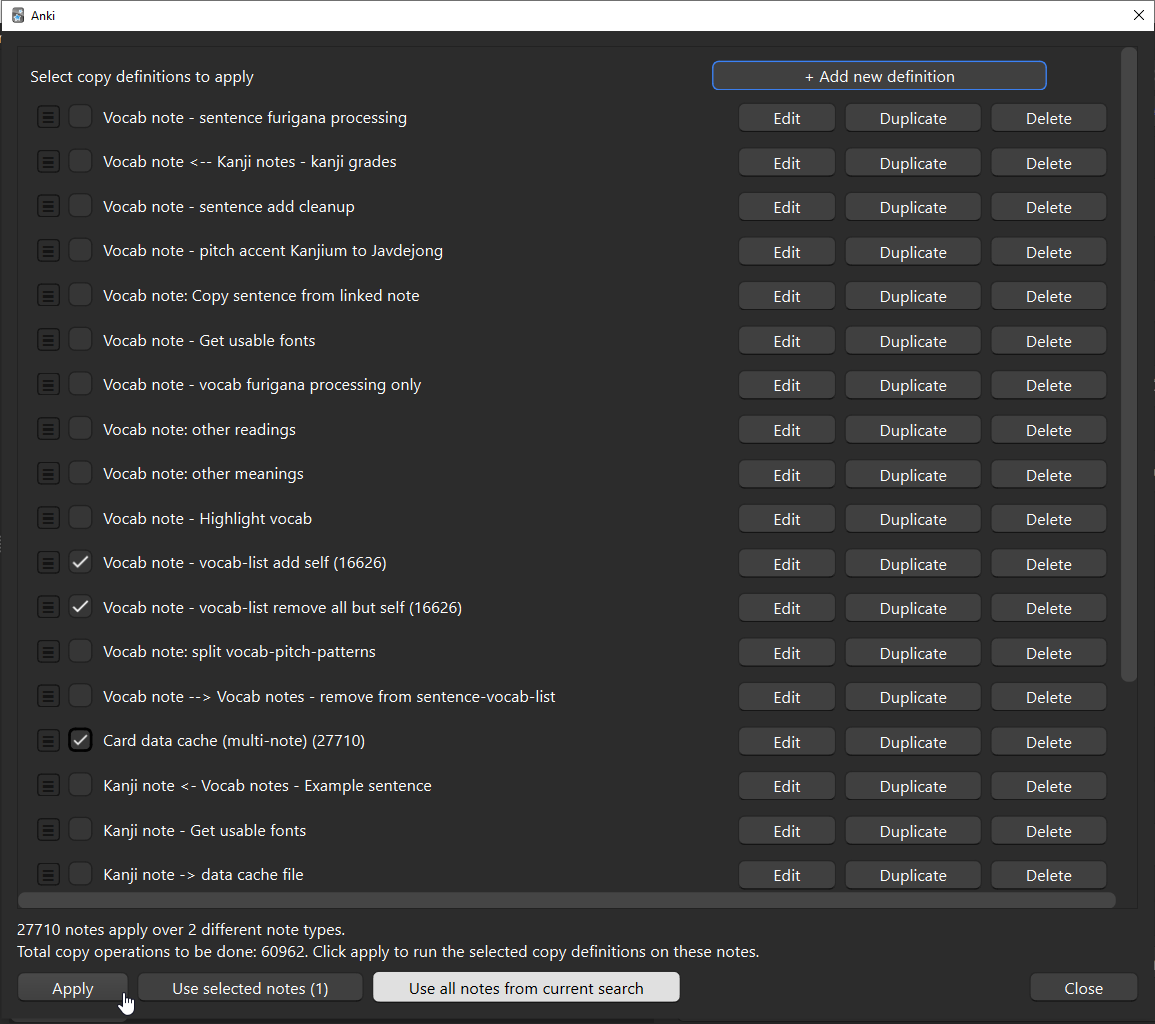
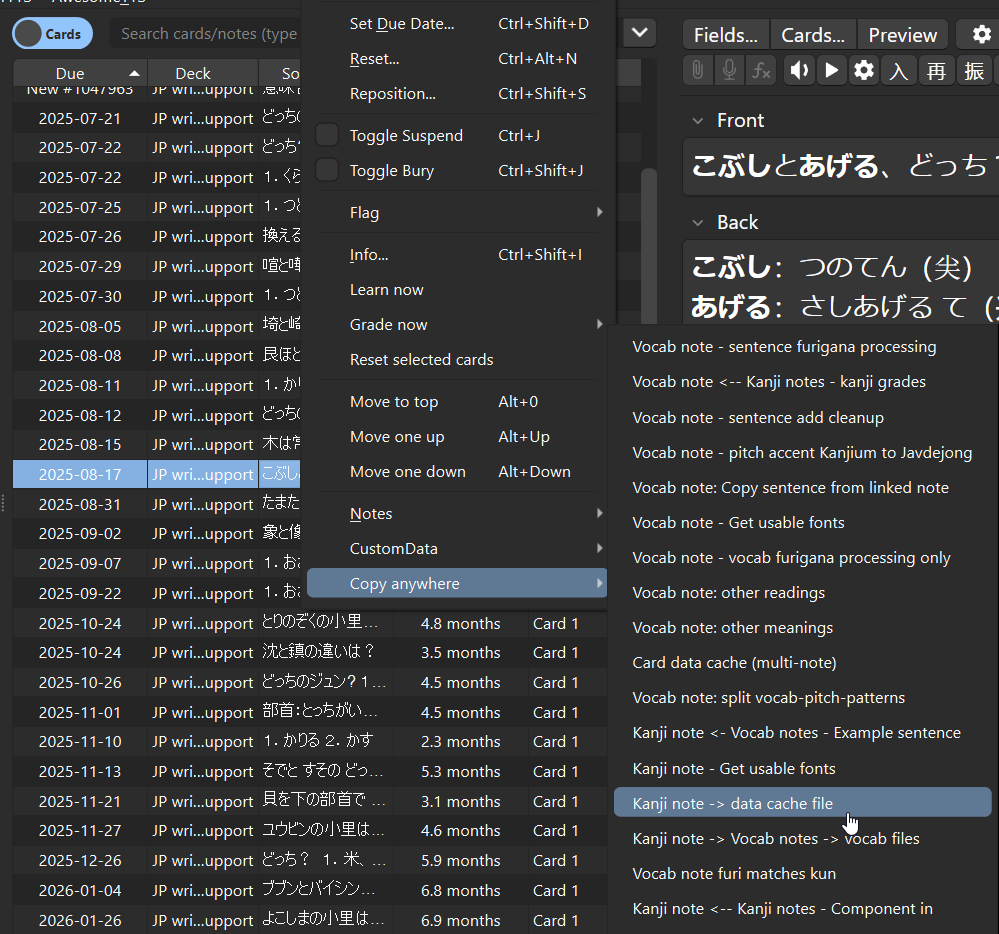
The dialog additionally allows running copy definitions for the selected notes in the browser, or the entire search result. This is useful for running multiple definitions at once for a selection of notes. Otherwise, to run a single definition for a selection of notes in the browser, you can use the right-click menu.
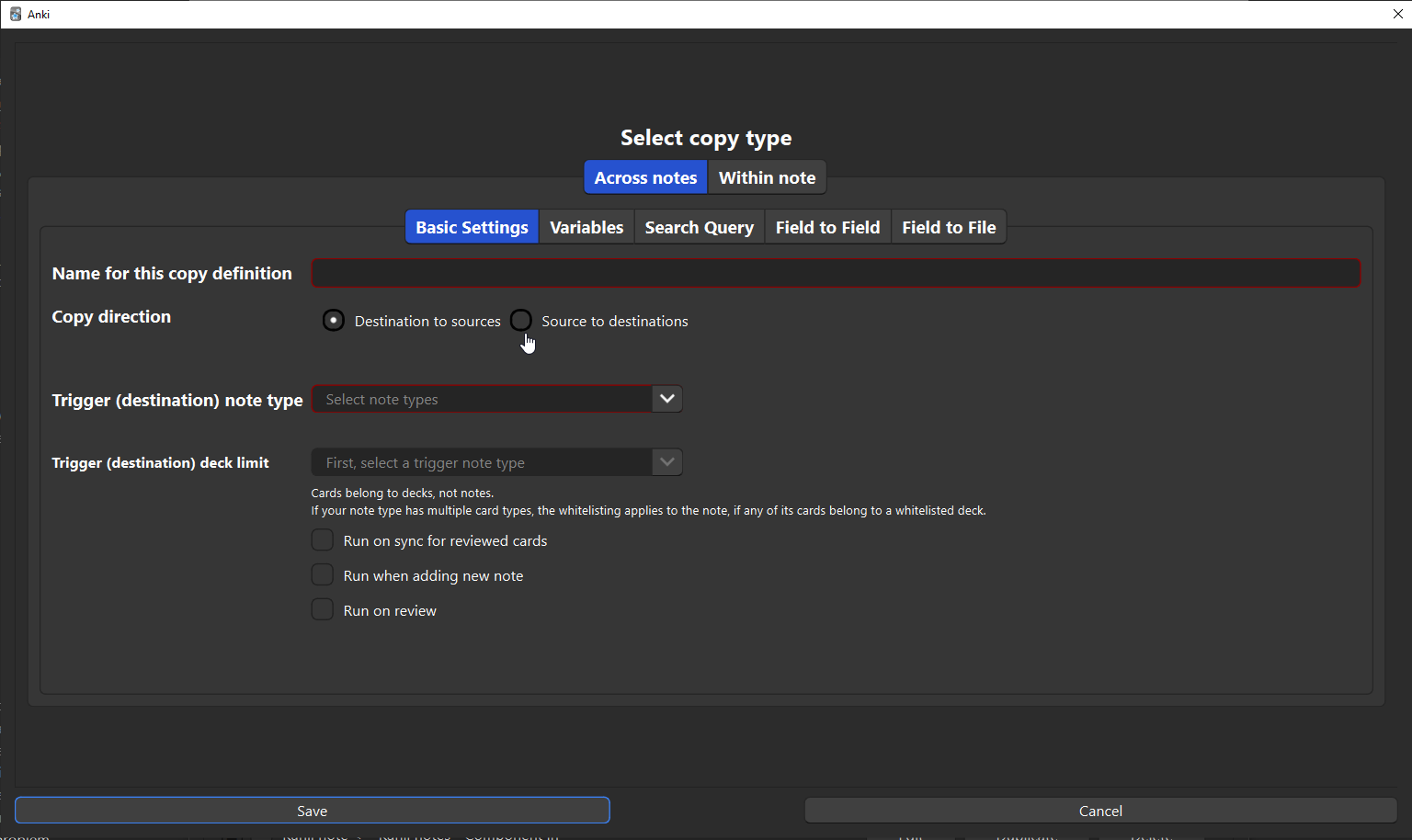
Run multiple copy definitions in dialog Run a single copy definitions through browser right-click menu Select main mode Within note: Edit one note’s fields using only its own fields and other data. Can also be used to save data from a note into a file. Across notes: Edit notes using fields and data from other notes. There’s two ways to do this: Source to destinations: Search for other notes with data from a note, then edit that one note with data from the found notes Destination to sources: Search for other notes with data from a note, then edit each of the found notes with data from the one note Basic settings
Name: Name is shown in the progress dialog, report tooltip and undo menu.
Trigger note type: What note type you’ll be editing. For Across notes mode, the notes you search are not restricted and can be any note types, even a mix of different note types, but the initial trigger note must be specified.
Selecting multiple note types restricts the editable fields to only those fields that every note type shares. In Across notes mode, the trigger note is either the destination or the source, depending on the direction.
Trigger deck limit: Optionally restrict whether the definition edits a note by deck by whitelisting specific decks.
Run on sync for reviewed cards (see Setting up custom scheduling): cards reviewed on other devices are gathered during sync and the copy definition is run on them (depending on trigger note and trigger deck limit). This allows copy definitions to be run on notes that you review on mobile but would like to run on review there.
If On review is off and On sync is on, then operations will be run on desktop as well for cards reviewed. This option is good when the operation takes annoyingly long when running on review. If On review and On sync are both on, then on desktop the operation is run on review only.
Run on review (see Setting up custom scheduling): After reviewing a card, this copy definition is run on its note, if the note matches the trigger note type and the trigger deck limit.
Run when adding new note: When adding a note, runs copy definition, if the note matches the trigger note type and the trigger deck limit. Applies to the adding notes using the Add note dialog, through AnkiConnect or other addons calling col.add_note(). Does not apply adding notes from the import dialog or notes added on mobile and then synced to desktop.
Variables
Optional. The variables can be used in Search Query, Field to Field and Field to File tabs. Main usage is in Across notes mode and you need to define a complex note search using the trigger note. Usage is similar to Field to Field except there’s no target field, you save the value into the variable name.
Search Query (Across notes mode only)
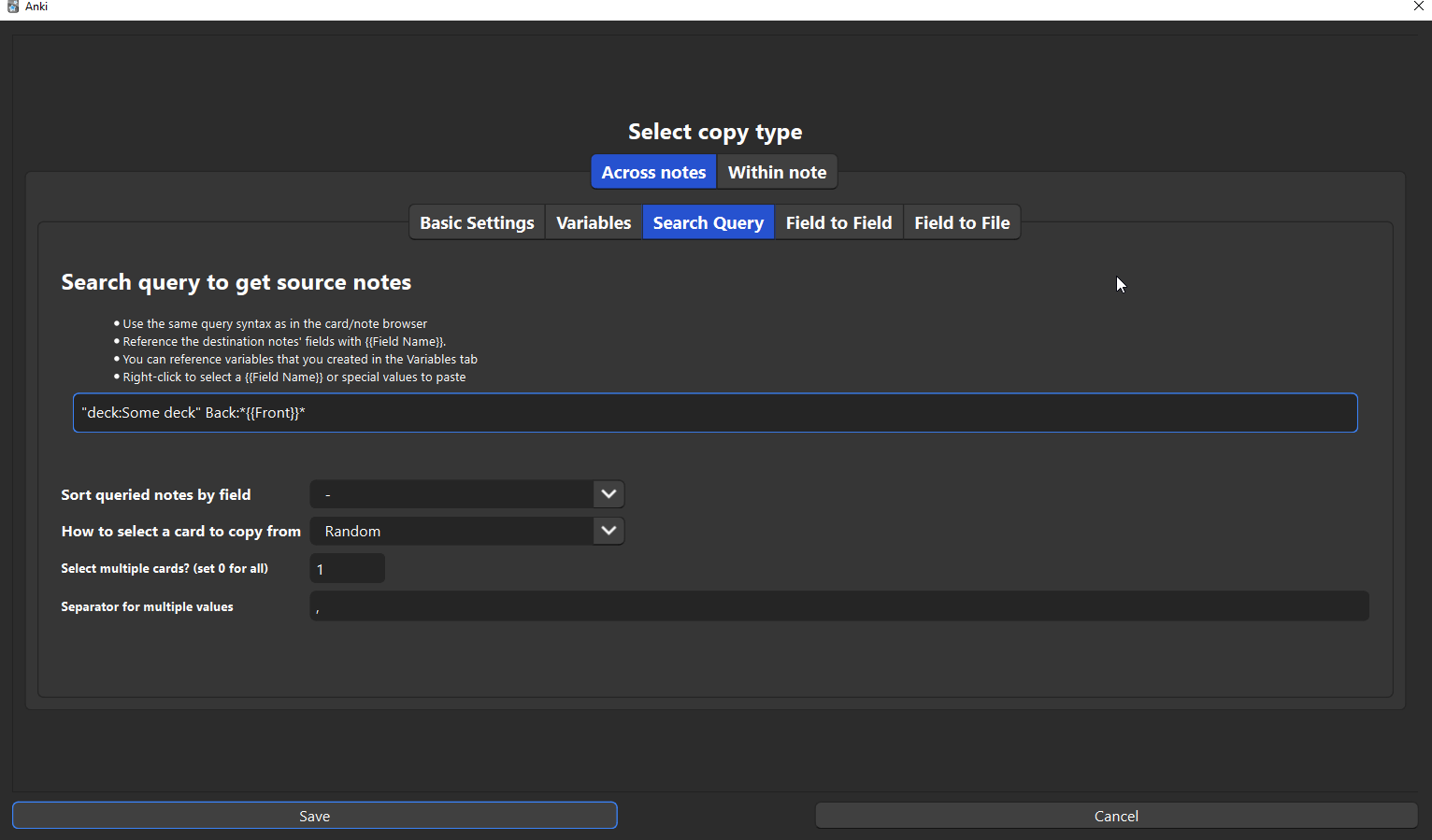
Required. Define a search query just like in the card browser, except you can include fields and data from the trigger note with {{}} like you do in the card template.
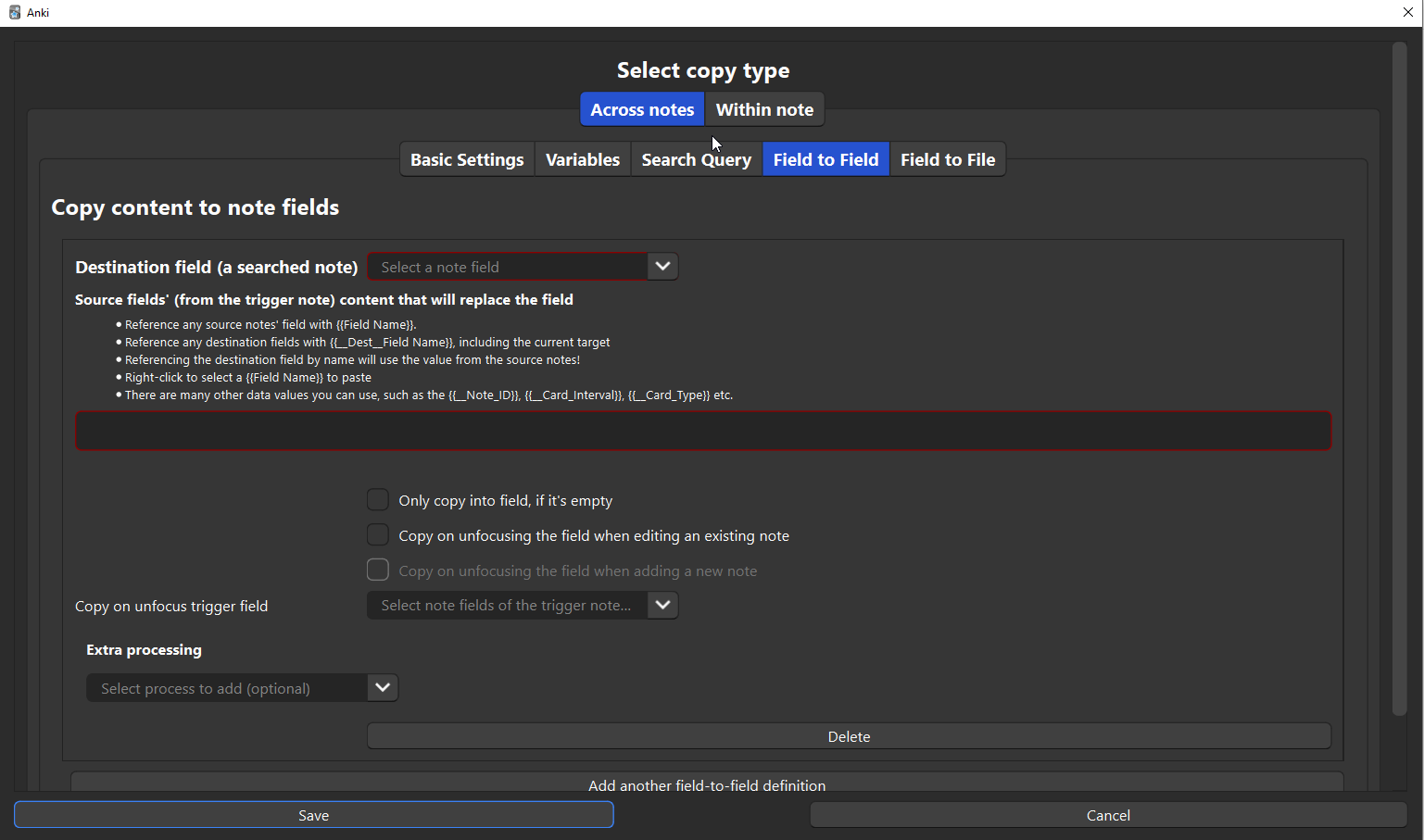
Sort queried notes by field: Optionally sort the found notes by this field alphabetically. The options are from all note types in your collection - there’s no detection of what note types your query might return, you’ll need to ensure that the field works for your query. Example use case: you have notes with a number field like Frequency and you want to pick the note with the smallest/largest Frequency —> Set Sort by to “Frequency”, Select multiple cards? to 1 and How to select card to None How to select a card to copy from: Applies when not selecting all notes. None: no selection, whatever order the notes are found, the first ones get selected. Random (default): randomly select notes until the select limit is reached Least reps: The only choice that selects by card and not note. Only works properly, if you filter the search to only include a single card type or your note type or only has one card type Separator for multiple values: Only needed in Destination to sources mode and you’re selecting more than one note from the search. In Destination to sources referencing fields with {{Field}} actually contains all the field values from each note selected from the search, concatenated together with the separator in between. Field to Field Destination field: In Within note or Destination to sources mode, this a trigger note field and only those are shown as options. In Source to destinations mode, this is a field in any of the notes gotten from the Search Query and all fields from all note types are shown as options, but you’ll need to manage your search query so that it only returns note types for which you pick the field here. Content: Define content to replace the field with. If you just want to edit the field “Field” itself with some regex then input {{Field}} and add regex processing. Only copy into field, it it’s empty: Limits to only editing empty fields. Copy on unfocusing the field when editing an existing note: Runs copy definition for just this destination field when you unfocus the selected field in the note editor. The selected field can be the field that will be edited or some other field, ie. the field that is used as a source for editing the destination field. Only applies to editing an existing note. Copy on unfocusing the field when adding a new note: Otherwise the same as above but only applies when editing a note in the Add note dialog Copy on unfocus trigger field: If empty, the trigger field is the destination field. Set to another field to make the unfocus auto-copying get triggered by that field instead. Does nothing if you haven’t checked either of the Copy on unfocusing … options Extra processing (Regex)
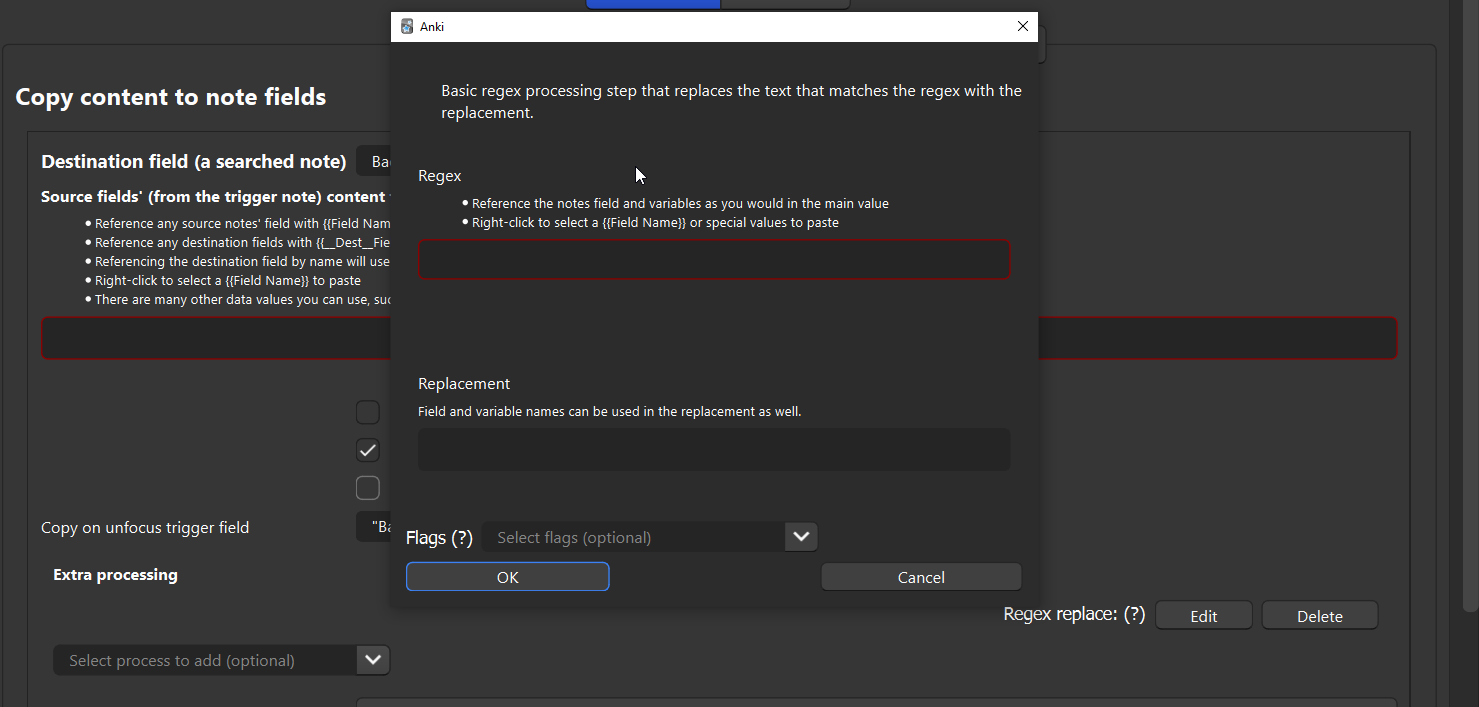
The Regex replace is what you want, the other options are some custom processors the author has made for themself and will get removed from the main addon eventually.
You can add any amount of regex steps that each get applied sequentially, so quite complex edits can be done, if you’re willing to make complex regex. Note, this uses Python regex and not the rust regex that Anki’s own search and replace uses. This means advanced (and potentially low performance) expressions like lookahead are available. Both the regex expression and the replacement value can also use the same {{Field}} syntax to input values from the note fields, including Variables!
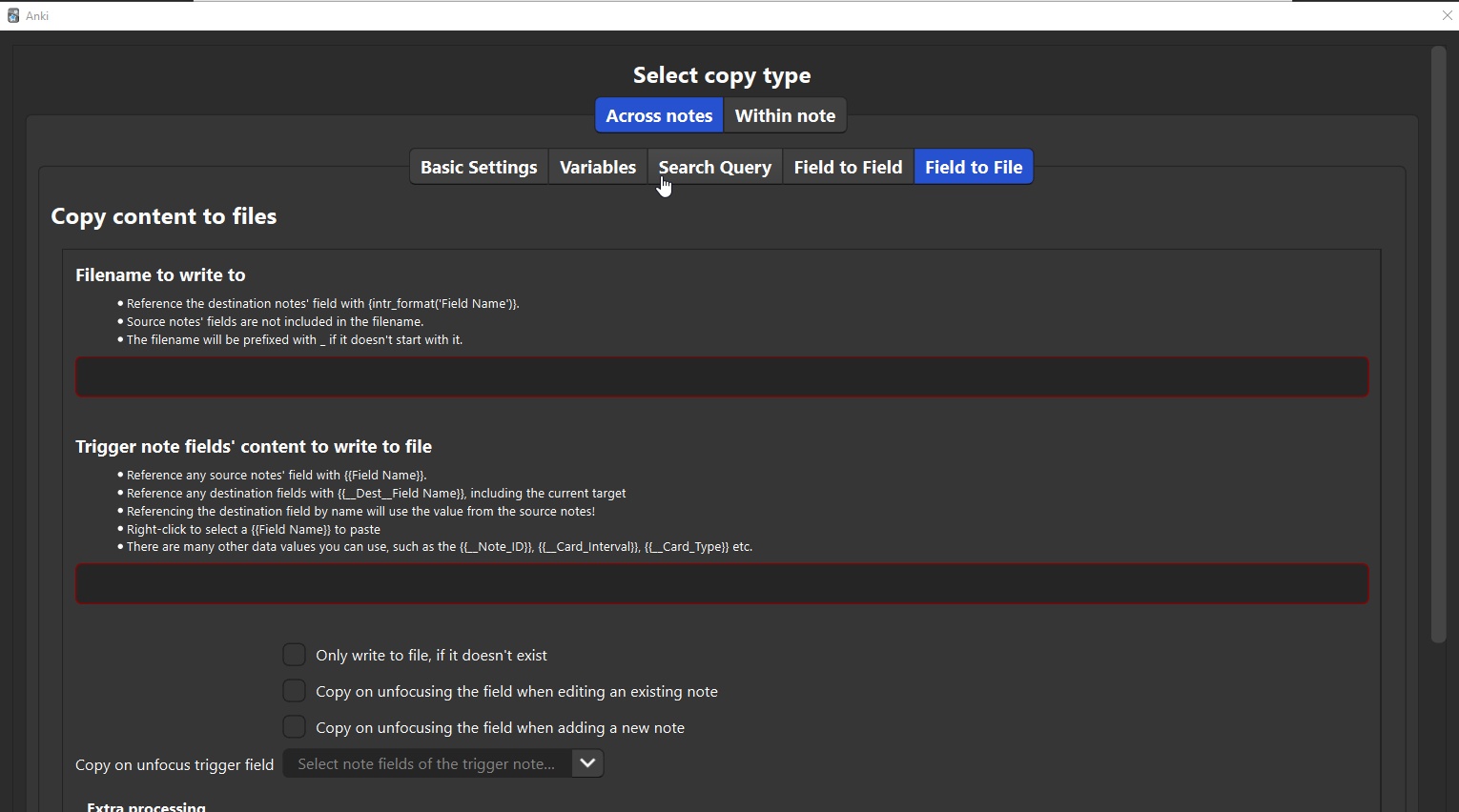
Field to File
Works otherwise the same as Field to File but instead of specifying a destination note field, you save into a file in your collection media folder. The filename once can also use {{Field}} syntax.
Setting up custom scheduling
If you enable copy definitions that should run on review or you use Anki on mobile, you need to add the below code to the custom scheduler in Anki. To enable fields to update after reviewing on mobile, enable Copy on sync.
Open any deck’s settings, at the very bottom in the Advanced section, open Custom scheduling. customData.again.fc = 0; customData.hard.fc = 0; customData.good.fc = 0; customData.easy.fc = 0;
What it does is sets a flag to the card that the addon checks for when looking for notes whose fields should be updated.
Changelog 23.7.2025 Fixed bug with cursor jumping whenever the definition is edited. Moved selection toggles and text to main dialog footer for easier access when the dialog is long enough to need scrolling. 14.7.2025 Fixed error with adding Regex replaces. Fixed weird spacing in main dialog 11.7.2025 Big update with lots of incremental changes, bugfixes and new features: UI updated to use lazy loaded tabs for each main section Unfocus trigger can by any field Variables for within note mode Drag-n-drop reordering definitions Regex can be interpolated too Fancier progress dialog Logging level can be changed to debug from error using config Fixed swapping fields not being possible. Every field edit uses the same initial field values; editing a field in one operation and sourcing it next doesn’t cause weird behaviour. Lots of work on kana highlight process: preserving kana, handling roman numbers, kanji target not required, bugfixes, more kanji data, jukujikun handling 17.12.2024 Bugfixes so far. Fixed variables not working when used in field content. Fixed fc=1 flag not set into custom_data when reviewing 15.12.2024 Now you can copy from destinations to sources and vice versa. Added a highlighting required fields in red and more styling.
Screenshots
Liên kết hỗ trợ
Reviews (1)
👍 2025-10-06
on 2025-07-13 I wanted to use it to save regular expressions (for search and replace), which I often use. But I couldn’t figure out the settings. Comment from author Yeah, I imagine the UI is not very intuitive at this point.
If the regex expressions you want to save are generic in the way that you’d want to use them for different note types and different fields, then this addon isn’t quite right for that. There currently isn’t a way to do “use regex expression X to edit fields A,B,C & D”, inst
