Image Search v3
Install from ankiweb
Image Search v3 is a powerful Anki add-on that lets you quickly find and add images to your cards directly from the editor. It searches for images based on the content of your fields or selected text and places the chosen image into a designated field.
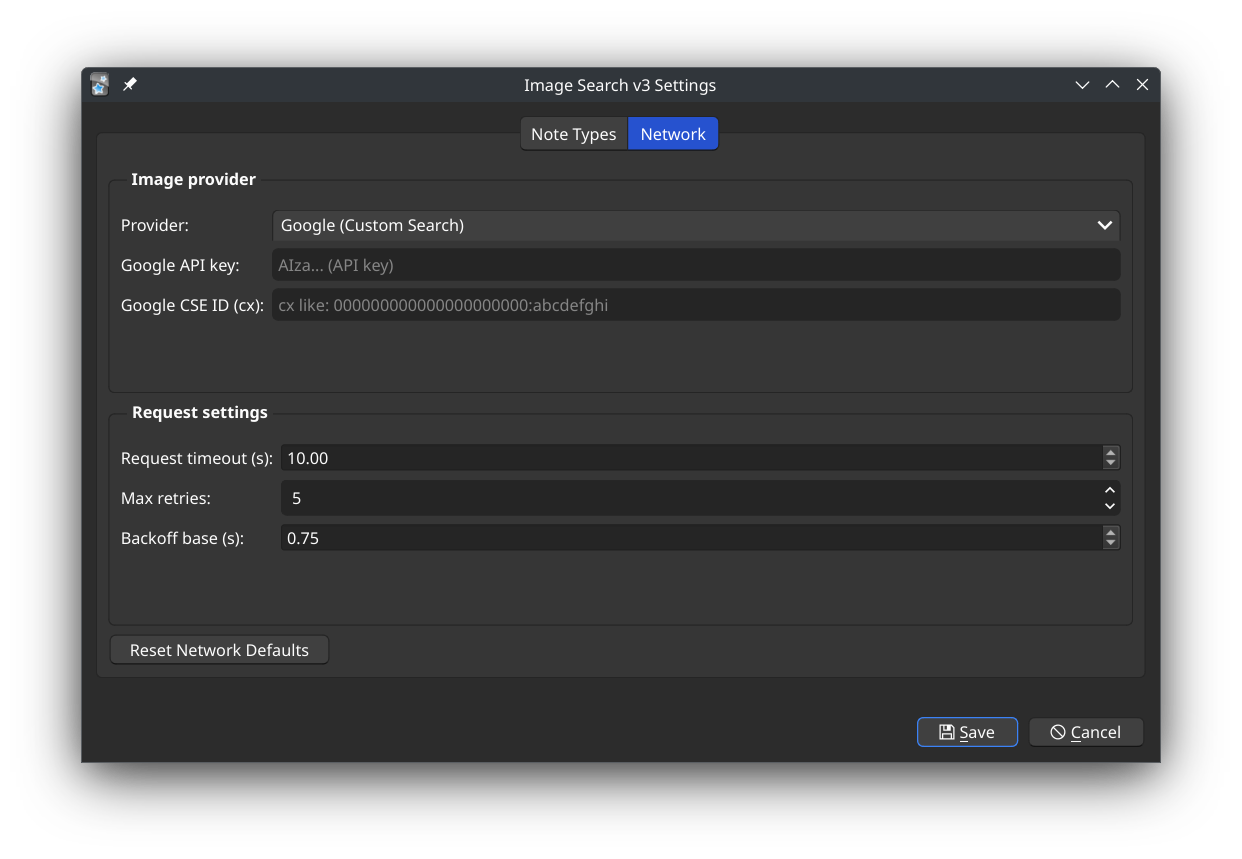
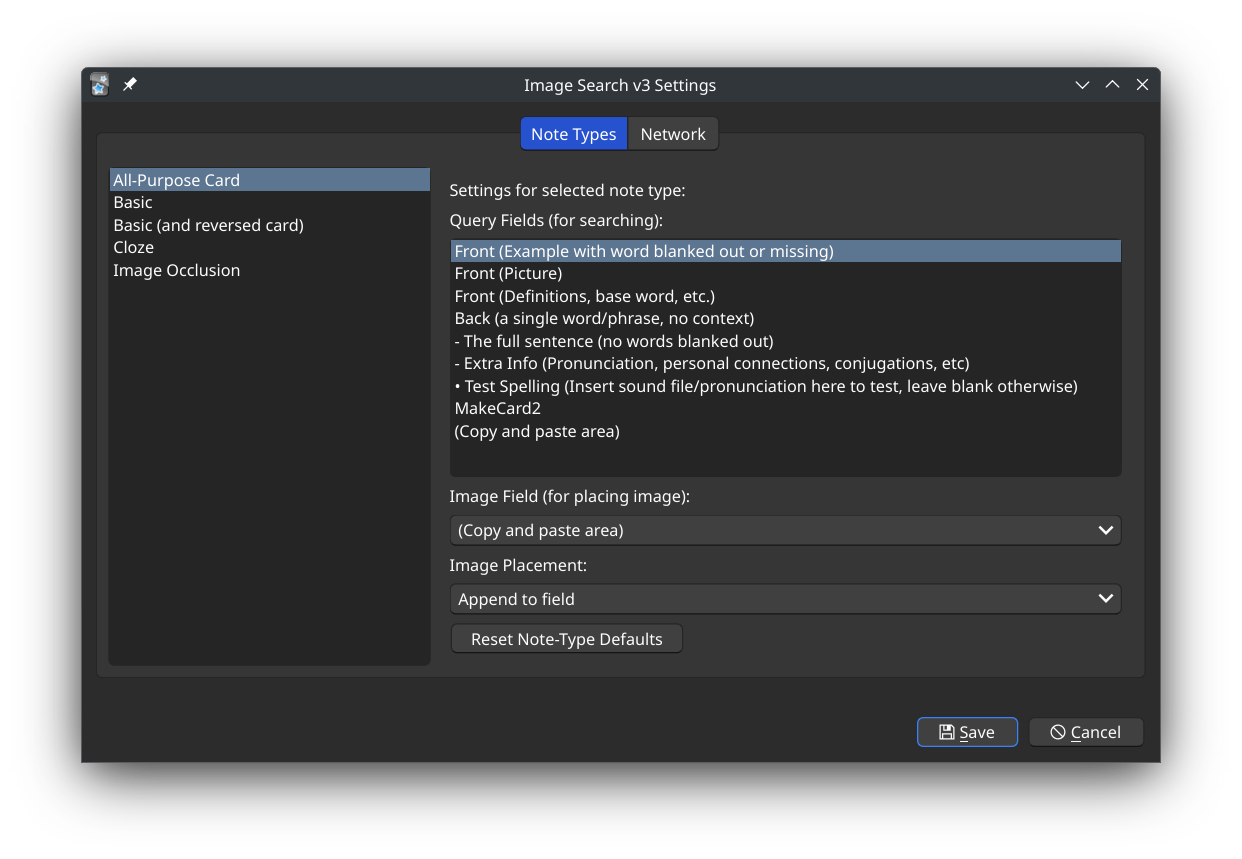
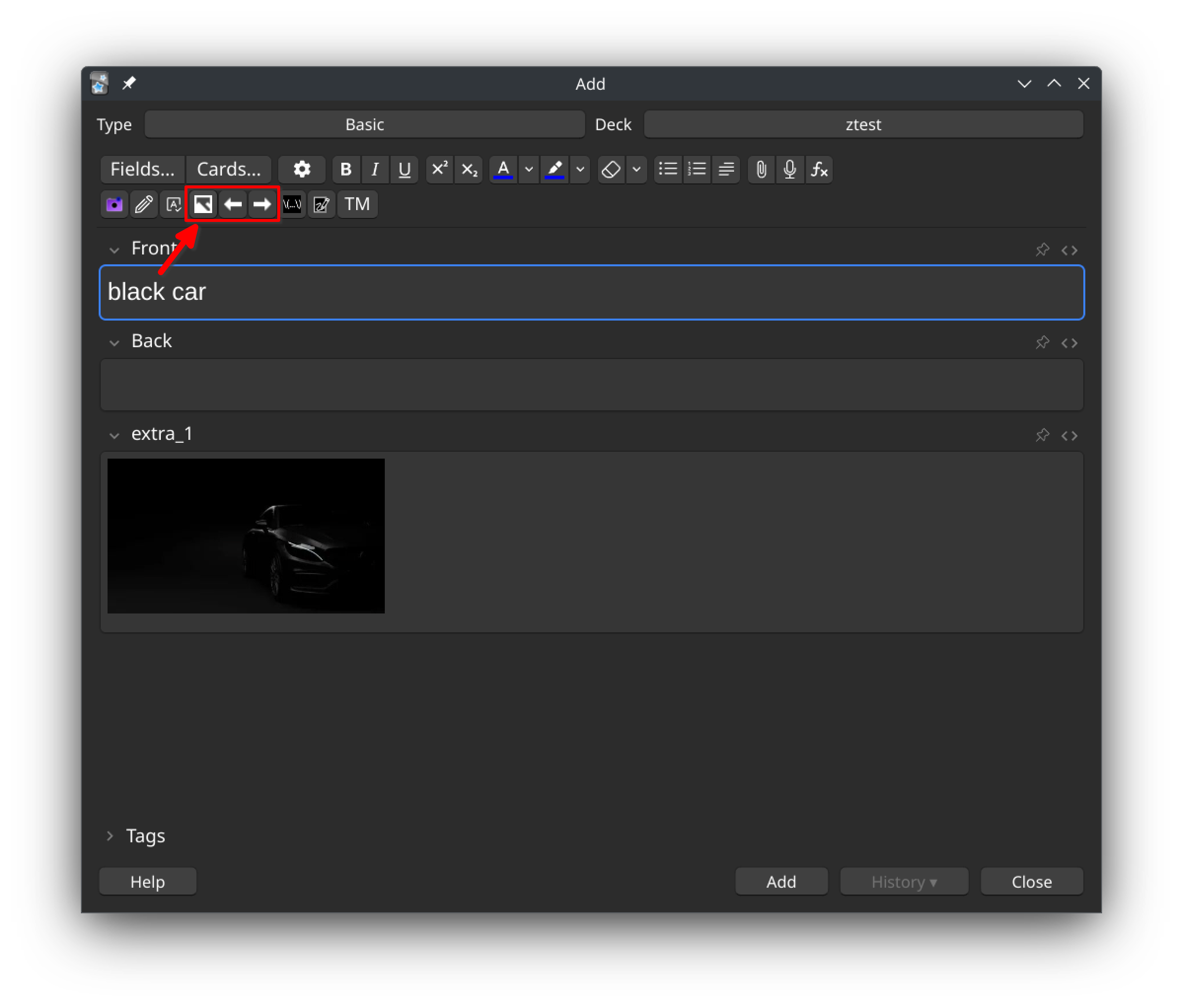
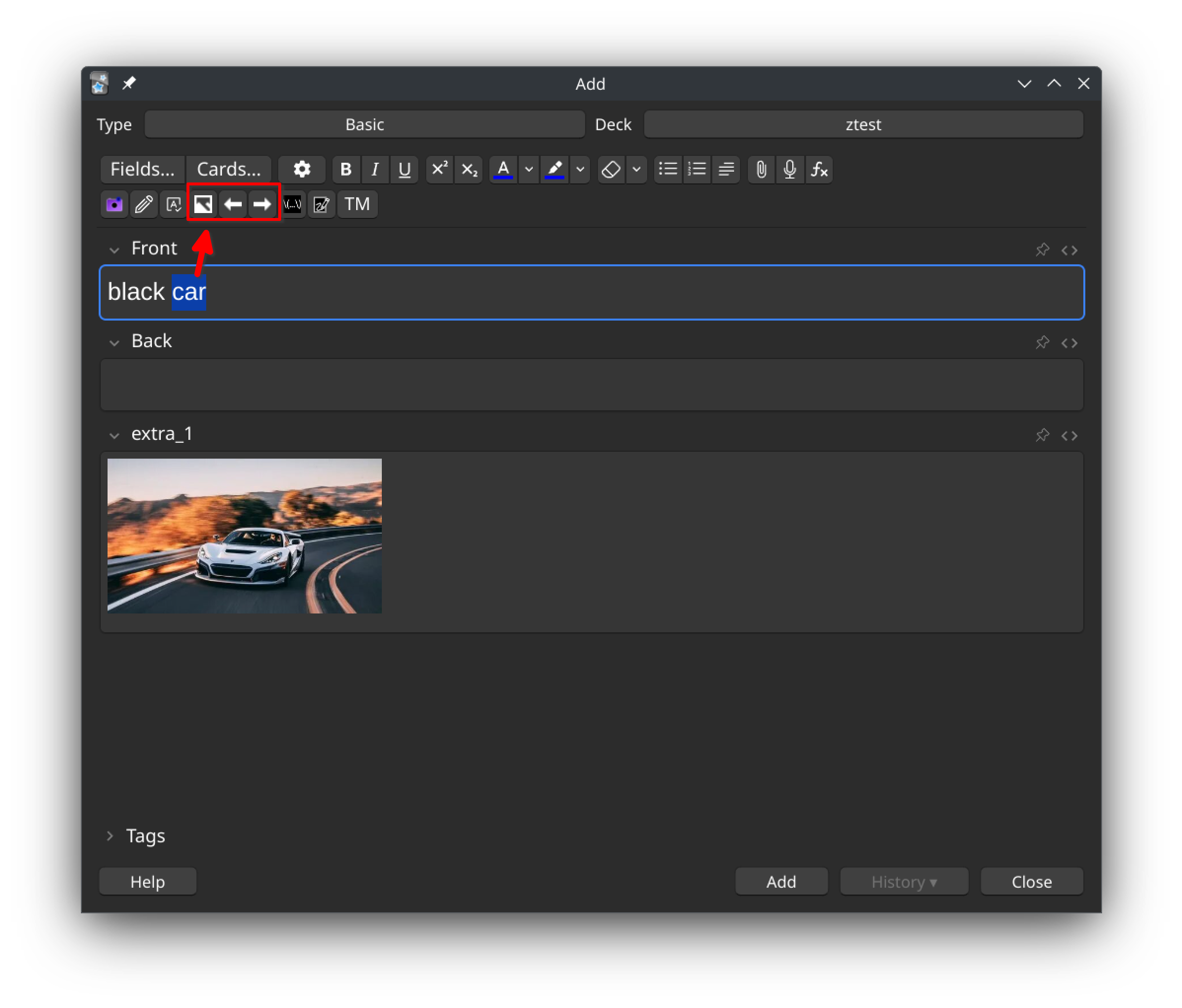
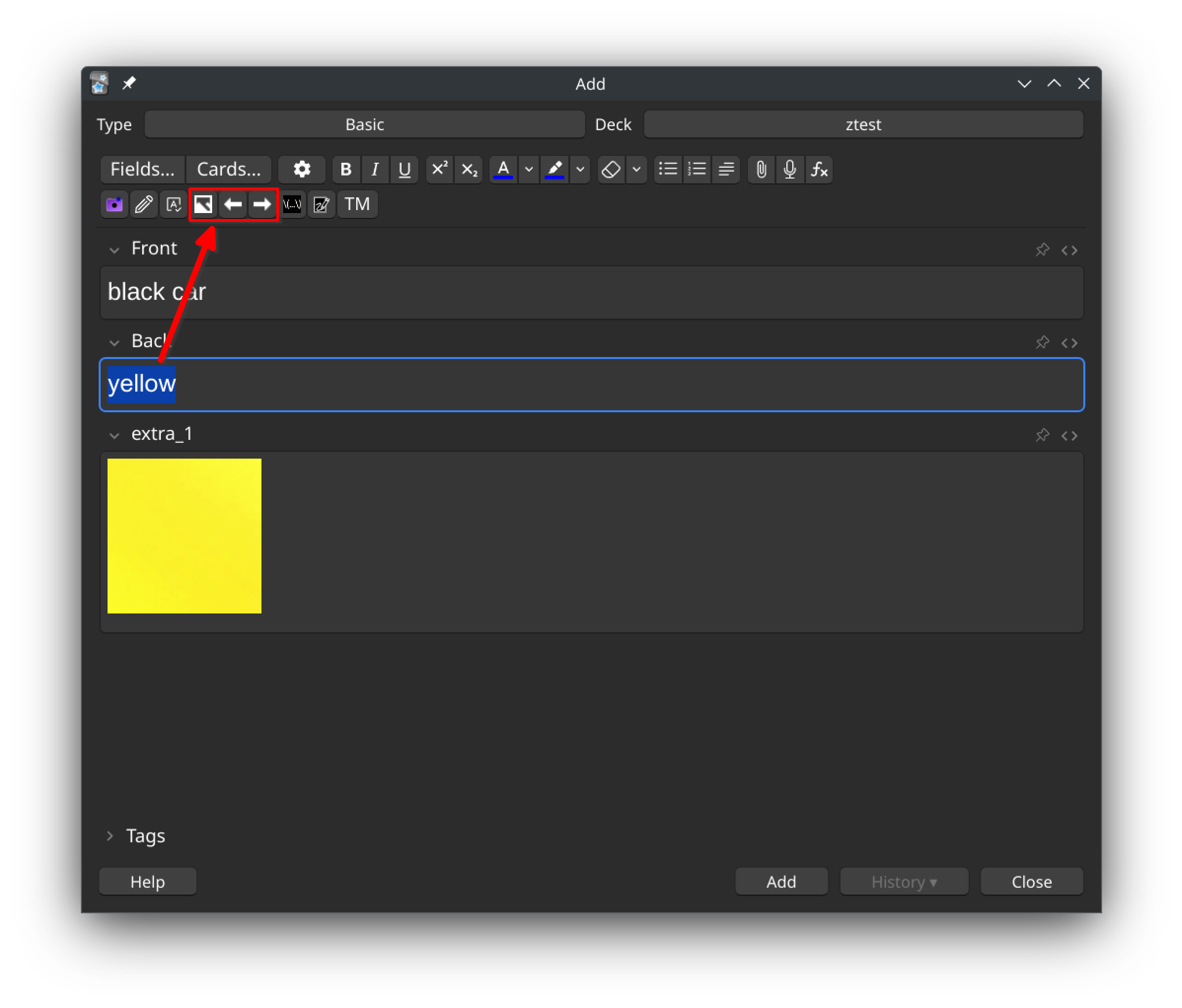
Features Image provider: Yandex (default) or Google Custom Search (images). When using Google, enter your API key and CSE ID (cx) under Tools → Image Search v3 Settings → Network. [Requires both key and cx] [searchType=image]. Per-Note-Type Configuration: Configure different query and image fields for each of your note types. Smart replace: only replaces prior images inserted by this add‑on (class “imgsearch”), preserving user text and other content; appends when no prior add‑on image exists. Graphical Settings Panel: An easy-to-use settings panel to manage your configuration. No more manual file editing! Smart Defaults: Automatically uses the first field of a note type for searching and the last field for placing the image if not configured otherwise. Search on Selection: Simply highlight any text in the editor and use the search button or right-click context menu to search for an image. Toolbar Integration: Adds “Search”, “Previous”, and “Next” image buttons directly to the Anki editor toolbar for a fast workflow. Right-Click Context Menu: Right-click on highlighted text to instantly start an image search. Usage
-
Configuration Open Tools → Image Search v3 Settings, select a note type on the left, then configure Query Fields, the Image Field, and Image Placement on the right, and click Save. Under Network, pick the provider; for Google, paste your API key and CSE ID (cx), and adjust timeout, retries, and backoff to suit your network. Defaults ship with an empty key/cx and provider set to Yandex, and sane network values for reliable startup on new installs.
-
Searching for Images
There are three ways to search for an image in the card editor:
Using the Toolbar Button: Click the “Search Image” button (the picture icon) on the editor toolbar. If you have text highlighted anywhere in the editor, that text will be used for the search. If no text is highlighted, the content of your configured Query Field(s) will be used. Using the Right-Click Menu: Highlight the text you want to search for, right-click it, and select “Search image for: ’…’” from the context menu. Browsing Results: Use the “Previous Image” and “Next Image” buttons (the arrows) to browse through other image results for the last query that was performed from the query field(s).
Provider notes Yandex: no‑auth, undocumented JSON endpoint used by the front‑end; works well but may change, be geo‑restricted, or rate‑limited without prior notice. Google: official Custom Search JSON API with searchType=image; requires both API key and CSE (Google Search Engine) ID (cx) and enforces quotas and billing on your account. Routing: when provider is Google, results are fetched from Google first and transparently fall back to Yandex if empty, preserving the editing flow.
If you don’t know how to get the API please read this: google custom-search
Troubleshooting Context Menu Item Not Appearing
If the “Search image for…” option does not appear when you right-click on selected text, it might be due to a conflict with another add-on that also modifies the context menu. A common conflict is with add-ons that provide image editing or other right-click functionalities in the editor.
You can diagnose this by temporarily disabling other editor-related add-ons (like “Image Editor”) via Tools -> Add-ons, restarting Anki, and checking if the menu item appears.
Update (2026-02-24) Security: removed insecure TLS behavior in Yandex requests (no disabled certificate verification/warnings suppression). Reliability: hardened network config parsing (timeout/retries/backoff) with safe fallbacks and value bounds to avoid crashes from malformed config values. Reliability: fixed temporary file cleanup to ensure downloaded temp files are deleted even when download/media import fails. Stability: network availability check now restores the previous global socket timeout instead of mutating process-wide defaults. UX/Data safety: fixed settings dialog dirty-state handling so switching note types does not silently discard unsaved Network tab changes. UX/Stability: made editor hook and Tools menu registration idempotent to prevent duplicate toolbar/context-menu/menu entries on add-on reloads. Performance: added a bounded in-memory query cache (LRU-style eviction) to prevent unbounded growth during long sessions. Update (2025-11-04) Added Google provider using Custom Search JSON API with images; enter your Google API key and CSE ID (cx) in settings and select Google as provider, with automatic fallback to Yandex if Google returns no items. Settings now include provider selection plus request timeout, max retries, and exponential backoff base, grouped under the Network tab. Image saving infers file extensions from URLs (jpg/jpeg/png/gif/webp/bmp) instead of forcing a single format to improve media compatibility across providers. Network availability check tries multiple hosts to reduce false offline errors in restrictive networks or partial outages. Settings dialog initialization hardened so status messages work reliably even if signals fire early during widget setup. Update (2025-10-31)
Smart Replace now replaces only images inserted by this add-on (identified by class=“imgsearch”) and never overwrites existing text or manually pasted images; if no prior add-on image exists, it appends instead.
Default placement is “replace” in code and settings, but it remains non-destructive: original field content is preserved and only prior add-on images are swapped.
Right‑click context menu is registered using gui_hooks.editor_will_show_context_menu with a legacy fallback for older builds, so “Search image for selection” appears reliably.
Yandex request pipeline hardened: explicit timeouts, limited retries with backoff, and robust JSON checks to avoid KeyError/TypeError on slow or offline networks.
Media downloads are offline-aware: quick DNS check, structured error codes (offline/network/unexpected), and a single concise user message instead of duplicate popups.
Per-note-type settings dialog: Save no longer closes the dialog; defaults initialize placement to “replace,” first field for queries, and last field for images.
Safer field resolution: if a configured image field is missing, the add-on falls back to the last field and warns; query field selection falls back to the first field.
Default config simplified: global image_field removed; query_fields defaults to [“Front”] for cleaner per-note-type configuration.
License
This add-on is a modification of the work of original authors. Credit goes to the creators of Anki Image Search v2 and Image Search.
The icons are provided by Open Iconic.
This project is licensed under the GPLv2.
Screenshots
Liên kết hỗ trợ
Reviews (2)
👍 2025-11-30
Very fast and intuitive but anyway to change the resolution? Only getting tiny thumbs (max 150px resolution) Comment from author Use Google Custom Search (images) for HQ images
👍 2025-10-31
good :D Comment from author Thank you for your review, Try out my other add-ons from my profile
