INLINE MEDIA Anki addon that allows adding media elements (<audio>/<video>) from URLs or local files and control individual element playback. Note that playback is within the reveiwer window, not in a popup window as Anki built-in [sound:]-tags.
General
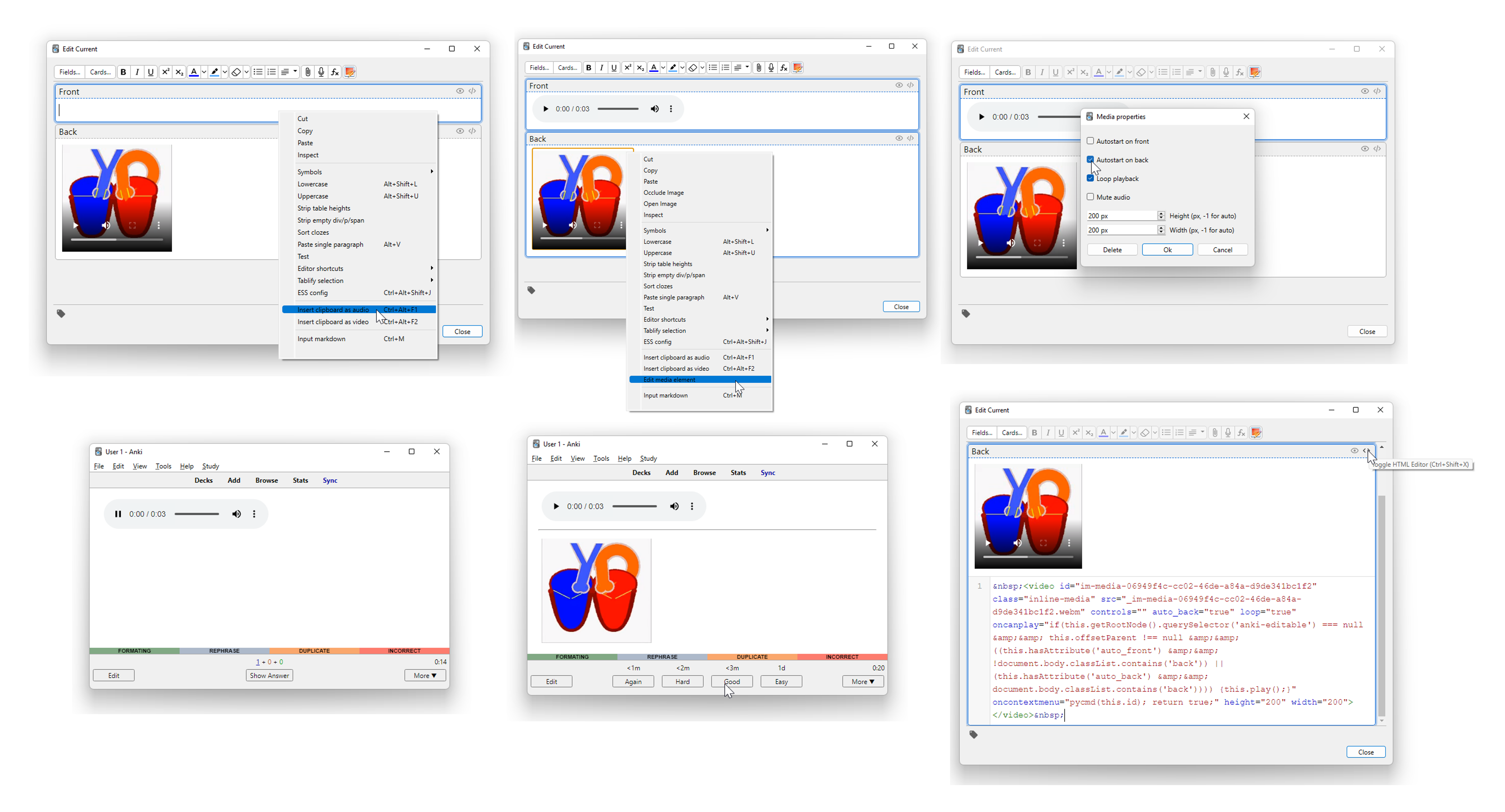
Inline Media uses FFmpeg to convert video and audio files to formats that are supported by Qt/Anki reviewer. Inline Media tries to use installed FFmpeg and if that fails it uses bundled version for Windows and MacOS (i.e. no bundled version for *nix users, install through sudo apt install ffmpeg or similar). Default formats are “webm” for video and “ogg” for audio (chosen for open source/license type) but can be configured to other types. Note, there are no error checks on format, ensure that FFmpeg can convert to the format you want to use and that your setup can render it. Inline media parses the clipboard for media URL(s) and local file path(s) - when present you can insert these by shortcuts (Ctrl+Alt+F1 for audio, Ctrl+Alt+F2 for video, configurable) or context menu. Note: select “Insert clipboard as audio/video” for Inline Media insertion, selecting paste or Ctrl+v will paste clipboard as core Anki [sound:] tags. Inserted files are converted to the selected format, i.e. if you paste a video file as audio it will be converted to audio only (which results in smaller file size) and shown as an audio element. If you paste an audio file as video it will be converted to video format but still be shown as audio since there was no video to begin with. Configure individual element from the context menu Edit media element (pressing Delete in that dialog will delete the element). Clean media library from orphaned media files from Main window → Tools → Check Inline Media (similar functionality as core Anki Check Media). Note: because of Anki architecture reasons Inline Media files are not cleaned through core Anki Check Media Delete inserted Inline Media elements from the context menu or by selecting at least one character on each side and then delete/backspace (the Anki editor will not delete the media tag node directly, only as part of a range/documentFragment). Tested on Windows and AnkiDroid, it should work on other platforms but I have not tested.
Configuration Video and audio formats as well as default media element configuration can be set in configuration and then adjusted individually in the editor (right click element):
Autoplay (front): true/false - automatically start playback on “front side”. Autoplay (back): true/false - automatically start playback on “back side” Loop: true/false - loop playback continuosly. Mute: true/false - mute audio. Width: width in pixels/-1 - only valid for videos. Set element width or -1 for automatic width. Height: height in pixels/-1 - only valid for videos. Set element height or -1 for automatic height.
Note: Front/back side is determined by the document body having the “back” class, this is not core Anki default behavior! To use this functionality you need to insert <script>document.body.classList.add(‘back’)</script> or similar at the top of the “Back Template” of the relevant card types. If you don’t Autoplay (front) will always start and Autoplay (back) will never start. Regardless of settings, the media files will not be automatically played in the editor, only in the reviewer.
Screenshots
Liên kết hỗ trợ
Reviews (6)
👍 2026-02-19
Doesn’t work for me using Linux.
👍 2025-08-28
I need to test it first.
👍 2025-03-01
very useful
👍 2025-01-22
Great addon still (mostly) functional with Anki 24.11 (87ccd24e)
Be aware, that using the hotkey crtl+alt+f2 causes an error. To avoid the error, right-click the field, you want to paste your file into and select “insert clipboard as video” manually. This is slightly less convenient than using a hotkey, but at least it works.
For reference, here’s the error message of using the hotkey: Anki 24.11 (87ccd24e) (ao) Python 3.9.18 Qt 6.6.2 PyQt 6.6.1 Platform: Windows-10-10.0.26100
Traceback (m
👍 2024-01-11
The idea is good, but unfortunately it doesn’t work
👍 2023-08-04
very good
