🟨 Sticky Notes Add-on for Anki Desktop
A powerful, Markdown-enabled sticky notes add-on for Anki with an intuitive live preview editor.
[Update] : 31/01/2026 : This release adds presets, templates, image export, and expanded keyboard shortcuts. Presets
Presets let you save a style for sticky notes. You can now mark any preset as your default and the new notes will be in the preset style only. Four premade presets are included:
Small (150x150) Wide (300x150) Tall (150x300) Large (300x300)
In a preset you can edit color, size (width and height), font family, font size, Font style (bold/italic/normal).
You can edit, delete, or create your own presets.
Templates
Templates are reusable text, snippets or Markdown blocks.
They help you start a note quickly.
Templates are useful for:
Markdown Tables Todo Lists Any long text that you do not want to write again and again. You can create, edit or delete templates at any time. Other updates Sticky notes can be exported as images. This helps with sharing or saving notes outside Anki. More keyboard shortcuts are available. They help you create notes faster. Press F1 in the sticky notes dialog to see all shortcuts. [Update] : 28/11/2025 : Image and GIF Support added into sticky notes Images or GIFs can be imported using Image tool in the toolbar. Images can be directly pasted from the clipboard as well. (Unlike GIF due to lack of metadata while copying a GIF) GIFs can be either imported from local files (without internet) or use GIF tool from toolbar to search tenor GIFs (requires internet connection). Installation
Install via AnkiWeb or GitHub Releases.
Download the .ankiaddon file from the Releases page or install via AnkiWeb. In Anki, go to Tools → Add-ons → Install from file… Select the downloaded file. Restart Anki. Press Ctrl+Shift+S on any card review/answer screen to create your first note. How to Use
To use this add-on, simply install it from AnkiWeb or GitHub Releases and follow the steps below:
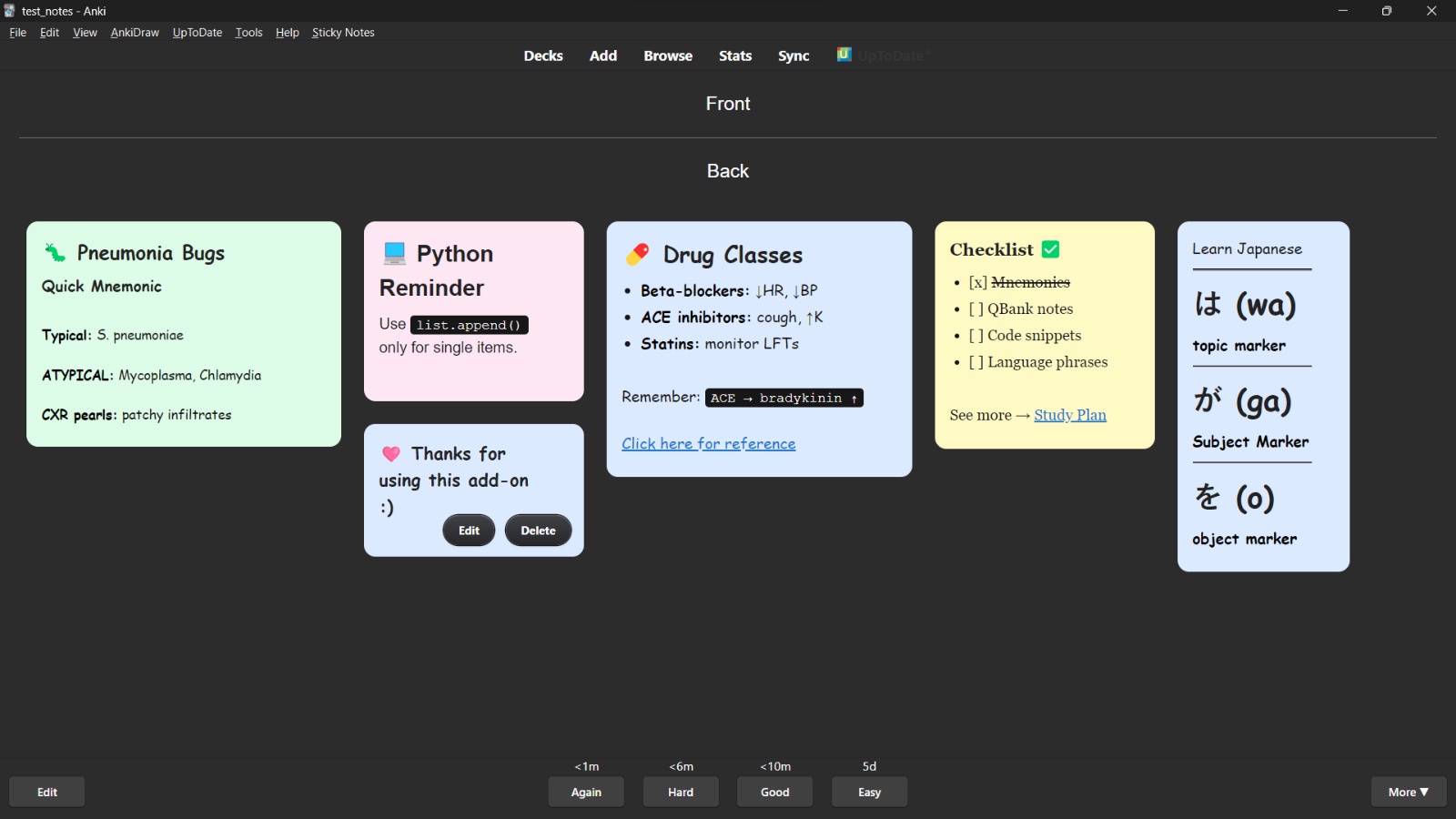
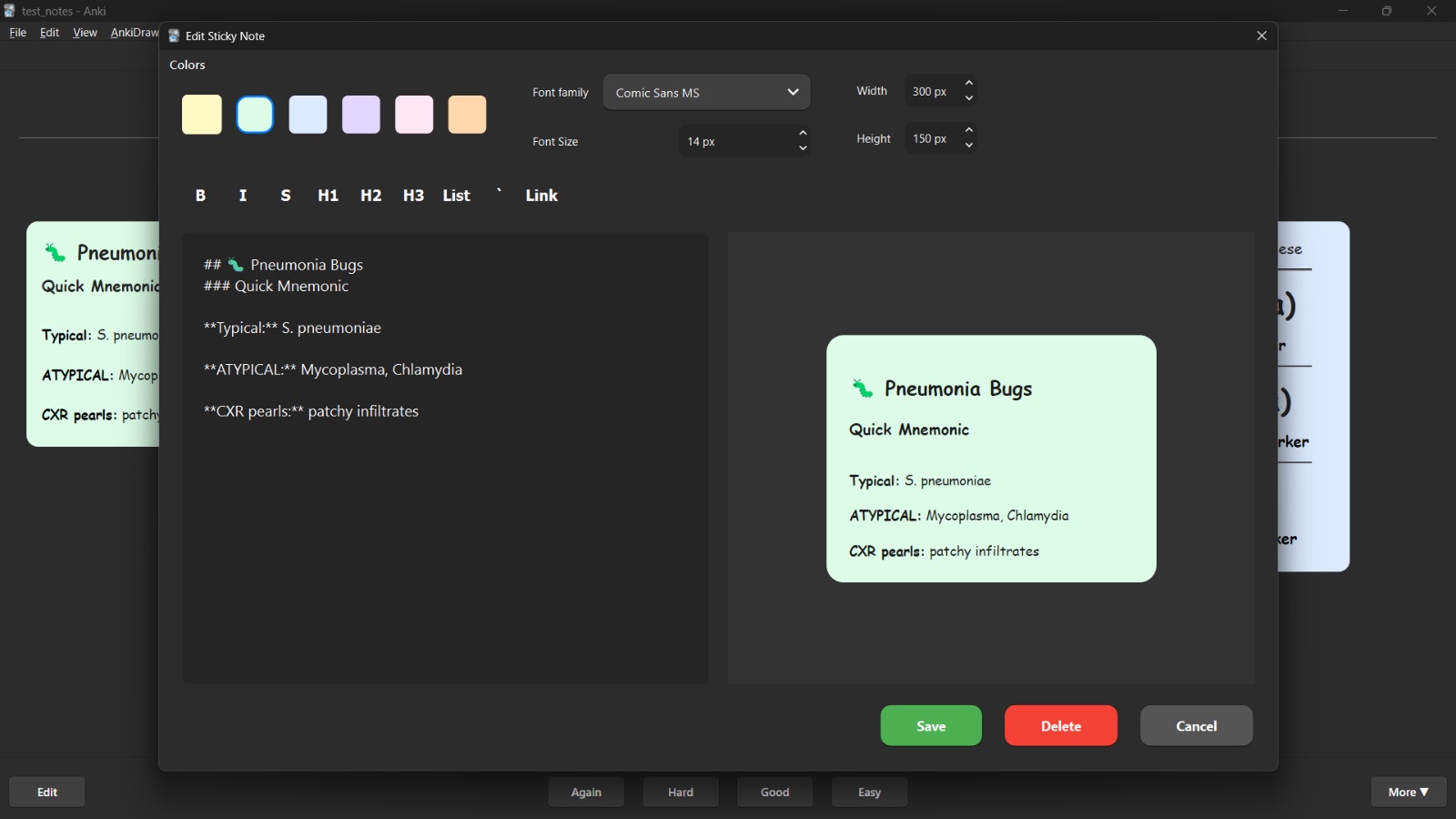
After installing the add-on, restart Anki Desktop. Visit the card where you want to add sticky notes, and open the review or answer screen (back side of the card). Press Ctrl+Shift+S to add a sticky note (you can also find the Add Sticky Note button under the More menu in the bottom-right corner). This will open the sticky notes live preview Markdown editor. Create your sticky note and press Save to add it to the review screen. Later, hover over the card to see the Edit and Delete options for the sticky note. Features Rich Markdown Support
Write notes using full Markdown formatting:
Bold, Italic, Strikethrough, Inline Code
Headings (H1, H2, H3)
Bullet lists
Links text
Horizontal rules (---)
Keyboard Shortcuts
Here are the keyboard shortcuts for the markdown editor:
Text Formatting
Ctrl+B - Bold text Ctrl+I - Italic text Ctrl+Shift+X - Strikethrough
Headings
Alt+1 - Heading 1 Alt+2 - Heading 2 Alt+3 - Heading 3
Lists & Blocks
Ctrl+Shift+L - Bullet list Ctrl+Shift+Q - Blockquote Ctrl+Shift+H - Horizontal rule
Code & Links
Ctrl+` - Inline code Ctrl+K - Insert link
Images and GIFs
**Ctrl+Shift+I - Import Images and GIFs (You can also copy and paste images directly into editor) ** Ctrl+Shift_G - Tenor GIF image search (requires Internet connection to search and view GIFs) Smart Visual Editor with Markdown Toolbar
The editor provides a live preview of your sticky notes as you write:
Select text and click a toolbar button to instantly wrap it in formatting. Toggle formatting on/off with a second click. Live Preview
See exactly how your note will appear on the card as you type.
Customization Options Six color themes: yellow, green, blue, pink, purple, orange Adjustable font size and family Configurable sticky note width and height Sticky Notes Storage & Syncing (IMPORTANT)
Your sticky notes data is stored inside your Anki profile’s collection.media folder. These files sync along with your media.
However, this approach has one drawback: Sticky notes cannot be searched in the Card Browser.
I chose this method because making sticky notes searchable would require adding an extra StickyNotes field to every note type, which would break updates for shared decks on AnkiHub—deck updates are controlled through fields.
If someone finds a solution, please submit a PR or share suggestions.
Since all sticky notes are stored in a single _sticky.json file inside the media folder, the notes sync correctly.
Here is an example of sticky notes stored for a card with ID 1763368231436:
{ “1763368231436”: [ { “data”: “Hello World\n”, “color”: “yellow”, “font_size”: 18, “font_family”: “Comic Sans MS”, “width”: 300, “height”: 150 }, { “data”: ”### Hello\n_This is a note_”, “color”: “pink”, “font_size”: 19, “font_family”: “Verdana”, “width”: 200, “height”: 100 } ] }
Import & Export Sticky Notes
Sticky notes can be imported or exported as JSON files, specific to decks. You can import/export all sticky notes belonging to a particular deck.
Automatic Grid Layout
Notes are automatically arranged using a clean grid layout—no overlaps, no manual dragging required.
This is powered by PackeryJS, which creates a Bento-style layout automatically.
Workflow Keyboard shortcut: Ctrl+Shift+S on the review/answer screen to add or open sticky notes. Export/Import: Back up and share your notes. Compatibility: Works with Anki 2.1.66+ including the latest Qt6 versions (25.09+). Basic Operations Add Note: Ctrl+Shift+S or right-click → Sticky Notes → Add Delete Note: Hover over the card for the Delete button, or open the editor and click Delete Use Cases
This add-on is great for:
Students adding quick explanations or mnemonics to complex diagrams Language learners adding example sentences or grammar notes General study adding supplementary information without modifying the original card
Markdown support ensures clean and readable formatting without cluttering card templates.
Technical Details Built with PyQt6 and Packery.js Lightweight custom Markdown parser Tested on Windows and macOS Compatible with Anki 2.1.66+ (including Qt6 versions) License
This add-on is free and open source.
Support the Development
I am a solo developer dedicating my time to create and maintain this add-on for the Anki community.
If you find this add-on helpful, please consider supporting its development.
Indian patrons: UPI ID: ankit.upa007@oksbi
International patrons: PayPal: paypal.me/thisisankitupadhyay
Contributions and feedback are welcome. Report bugs, request features, or submit a PR. For contact, email: theankitnet@gmail.com
Screenshots
Liên kết hỗ trợ
Reviews (6)
👍 2026-02-20
absolutely adore this add on to add details and comments to cards without cluttering them !
only downside is that I can’t sync the sticky notes between “sibling cards” on image occlusions (I use the image occlusion enhanced add-on). How could I fix this ?
thank you !!
👍 2026-02-01
This is quite a nice addon that enhances the process of active learning.
👍 2025-12-01
Very nice, I use it for synonyms and a link to the RAE dictionary.
👍 2025-11-29
Good add-on for using Sticky Notes with Anki! It is useful for enhancing the UI👍️
👍 2025-11-24
Great job! Another great contribution to the community!
PS: Works flawlessly (and looks great) with Onigiri add-on
👍 2025-11-19
Looking nice. Some technical feedback from an add-on developer:
- I recommend storing the _stickynotes.json file inside the user_files subfolder of your add-on instead of the media folder. See https://addon-docs.ankiweb.net/addon-config.html#user-files
- In storage.py, you’re using
mw.col.media.mark_file_modifiedandmw.col.media._changed, but there are no such properties in Anki. - I noticed you’re using regex to convert Markdown to HTML. This is probably fine for now, but I recommend u
