Pictorial Mnemonic Generator
Supercharge your memory by integrating the Memory Palace technique directly into Anki. This add-on lets you easily mark difficult cards, build detailed palaces, and associate vivid imagery or AI-generated symbols to make recall faster and more reliable. If you’re a fan of Mullen Memory, Sketchy, or Pixorize, this add-on is for you!
Features Quick Marking of Cards Flag cards you’re struggling to remember using the brain icon or the shortcut Ctrl+Alt+Q. Once linked to a palace, the card automatically gets tagged with that palace’s name. Create and Manage Memory Palaces Build new palaces from Tools → Memory Palace Manager. Organize them visually and keep all your memory aids in one place. Drag-and-Drop Assignment Effortlessly assign marked cards to a palace by dragging them into the desired palace list. Most fields are optional—only fill in what you need. AI-Powered Symbol Generation (optional, API key required) Let AI generate creative and memorable symbols for your concepts. Fine-tune or edit symbols manually at any time. Image Creation & Updating Generate detailed palace images with AI, or copy prompts into your own AI image tool. Save and reuse images, and even experiment with updating them as your palace evolves. Review Integration Automatically tag cards with their palace name when linked. During review, quickly spot relevant palaces with highlighted and bolded cues. Flexible Workflow Start by marking cards mid-review and organize them later. Or create a palace first and build it up as you study.
Note:
- Most features will provide a prompt that you can copy paste into an AI model for use without an API key. Only exception: automatic symbol generation. If you need help generating an API key, I would recommend google or asking AI (it must be chatGPT key) :D
- Image updating is experimental as of right now - copy pasting the prompt into web ChatGPT seems to work, but the API does not support it as of yet.
Installation In Anki, go to Tools > Add-ons >Get Add-on. Input the ankiweb code and restart Anki. How to Use
- Mark Cards for Mnemonics While reviewing, click the brain icon (top-right) or press Ctrl+Alt+Q. This adds the current card to the Quick Stack for later assignment.
- Open the Memory Palace Manager Go to Tools > Memory Palace Manager. Create a new palace for the topic you want to study, provide a name (e.g., “T-cell Lymphomas”) and a setting (the location/theme).
Notes:
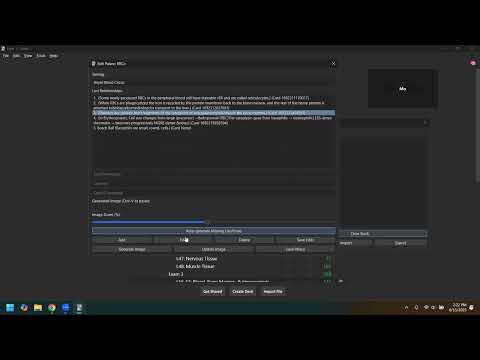
Image Occlusion cards: descriptions aren’t parsed from images, so these entries won’t have text by default. Non-AnKing cards: won’t be auto-sorted by BnB/First Aid categories. 3) Assign Cards to Palaces Drag and drop entries from the Quick Stack into the target palace. Optionally add a symbol/icon to represent the concept: Enter one manually, or Use the AI assist (requires an API key), or Double-click a Quick Stack entry to open the card for inspiration. 4) Edit and Manage Your Palace Load the palace to view and manage entries. Add new concepts and loci manually with the Add button. Edit entries and click Save Edits to persist changes. Delete entries as needed. Change the setting by editing the setting field at the top. Card ID & Tagging: If you add an entry while reviewing a card, the Card ID is auto-filled, and when you save, the card is tagged with the palace name. 5) Generate Symbols & Images Use Auto-Generate Missing Loci to fill empty symbol/icon fields with GPT-4 (requires API key). Click Generate Image to create a palace illustration: With API key: An image is generated and opened in your browser automatically. Without API key: Copy the provided prompt into your preferred AI image generator. Paste the image into the manager with Ctrl+V and adjust the zoom slider. Click Save Palace to save your entries and image. 6) Update Palaces (Experimental) After adding/removing entries, use Update Image to get a modified prompt for your image generator. Remember to provide ChatGPT (or whatever you’re using) with the previous image so that it can updated! Right-click to delete the old image, paste the new one, then Save Palace again. Note: This image-update workflow is experimental and partially disabled in some environments. Reviewing When studying a linked card (via Card ID), the corresponding palace in the manager appears highlighted. Load the palace: the relevant entry is shown in bold for quick recall. Tutorial Video Debugging Go to your addon folder via Tools > Addons > Click on Memory Palace Manager > View Files > Memory Palace Data > Relevant Debug txt file. Common sources of error include inappropriate prompt or invalid model (which can be modified in Anki’s “Config” setting for the Addon (Tools > Addons > Click on Memory Palace Manager > “Config”.) ChatGPT’s newer imaging models (e.g, ‘gpt-image-1’) require organization verification before image generating capabilities can be used. In this case, it may be preferable to use the web version. Summary of Workflow Mark cards while reviewing (brain button or shortcut). Create or open a palace in the manager. Assign cards via drag-and-drop from the Quick Stack. Add concepts, icons/symbols, and generate a palace image. Save the palace. During review, open the highlighted palace and skim the bolded entry.
Screenshots
Reviews (1)
👍 2025-08-25
Hey, this is a great idea. If you hav a chance could you do a youtube video, and show us how it works? Would love to see how it works, I tried using it, and I had a hard time Comment from author https://www.youtube.com/watch?v=JNdFQOgUSDo, I recommend watching at 2x speed lol.
